If you’ve ever stared at an Arduino sketch wondering how those cryptic lines of code magically bring robots and gadgets to life, you’re in the right place. At Robotic Coding™, we’ve spent countless hours untangling the mysteries of Arduino code—from blinking LEDs to building autonomous robots—and we’re here to share everything you need to know to become a confident coder in 2026.
Did you know that Arduino’s simple C++-based language powers millions of DIY projects worldwide, from home automation to cutting-edge robotics? But mastering Arduino code isn’t just about typing commands; it’s about understanding the logic, leveraging libraries, and debugging like a pro. Stick around, because later we’ll reveal advanced techniques like interrupts and timers that can turn your project from basic to brilliant!
Key Takeaways
- Arduino code is built on simplified C++, centered around
setup()andloop()functions that control your hardware. - Starting with essential examples like blinking LEDs and reading sensors sets a strong foundation.
- Using libraries and modular code saves time and makes projects scalable.
- Advanced coding techniques such as interrupts and non-blocking timers unlock powerful capabilities.
- Debugging tools like the Arduino IDE 2.0 debugger and Serial Monitor are your best friends for troubleshooting.
- Security is critical when connecting Arduino projects to the internet—always use encryption and authentication.
Ready to transform your Arduino projects with expert insights and practical code? Let’s dive in!
Table of Contents
- ⚡️ Quick Tips and Facts About Arduino Code
- 🔍 The Evolution and History of Arduino Coding
- 🧰 Understanding Arduino Code Basics: Syntax, Structure, and Functions
- 🔢 Top 10 Essential Arduino Code Examples for Beginners
- 💡 How to Write Efficient and Clean Arduino Code: Best Practices
- ⚙️ Exploring Arduino Libraries: Boost Your Projects with Prebuilt Code
- 📡 Integrating Sensors and Modules with Arduino Code: Step-by-Step Guides
- 🛠️ Debugging and Troubleshooting Arduino Code Like a Pro
- 🚀 Advanced Arduino Coding Techniques: Interrupts, Timers, and Communication Protocols
- 🎮 Fun Arduino Code Projects to Try at Home
- 📚 Recommended Arduino IDEs and Code Editors for Maximum Productivity
- 🛡️ Security Considerations When Writing Arduino Code for IoT Devices
- 💬 Community and Resources: Where to Find Arduino Code Examples and Help
- 🔔 Important Notices and Updates in Arduino Coding
- 🎯 Conclusion: Mastering Arduino Code for Your Next Project
- 🔗 Recommended Links for Arduino Coding Enthusiasts
- ❓ Frequently Asked Questions About Arduino Code
- 📖 Reference Links and Further Reading on Arduino Code
⚡️ Quick Tips and Facts About Arduino Code
Welcome to the electrifying world of Arduino code! At Robotic Coding™, we’ve been elbow-deep in microcontrollers and lines of C++-flavored sketches for years, and we’re here to share some quick tips and fascinating facts that will supercharge your Arduino journey. Whether you’re just starting out or looking to sharpen your coding chops, this section is your fast lane to Arduino mastery.
Quick Tips for Arduino Coding Success
- Start simple: Begin with the classic Blink sketch. It’s the “Hello World” of Arduino and teaches you the basics of pin modes and timing.
- Comment your code: Trust us, your future self will thank you when debugging or expanding projects.
- Use the Arduino IDE 2.0: It’s faster, supports autocompletion, and has a live debugger — a game-changer for troubleshooting.
- Leverage libraries: Don’t reinvent the wheel! Libraries like
Wire.hfor I2C orServo.hfor motors save tons of time. - Test incrementally: Upload and test small chunks of code rather than writing everything at once.
- Use the Serial Monitor: Debug by printing variable values and program states in real-time.
Fascinating Arduino Code Facts
| Fact | Explanation |
|---|---|
| Arduino code is based on C++ | The Arduino IDE uses a simplified C++ dialect, making it accessible yet powerful. |
Arduino sketches have two main functions: setup() and loop() |
setup() runs once at startup; loop() runs repeatedly, driving your project’s behavior. |
| Digital pins can be INPUT, OUTPUT, or INPUT_PULLUP | This flexibility lets you read sensors or control actuators easily. |
| Analog pins use ADC (Analog-to-Digital Converter) | They convert continuous voltages into digital values (0-1023), enabling sensor readings. |
| Arduino IDE supports code folding | Use the Command Palette (F1) and type “Fold All” to collapse large code sections for easier navigation. |
Pro Tip from Robotic Coding™
We once debugged a 6000+ line sketch where the lack of code folding made navigation a nightmare. Using the “Fold All” command in Arduino IDE 2.x saved hours! If you’re working on big projects, mastering IDE features is as important as the code itself.
For more on Arduino IDE features, check out the official Arduino Software page.
🔍 The Evolution and History of Arduino Coding
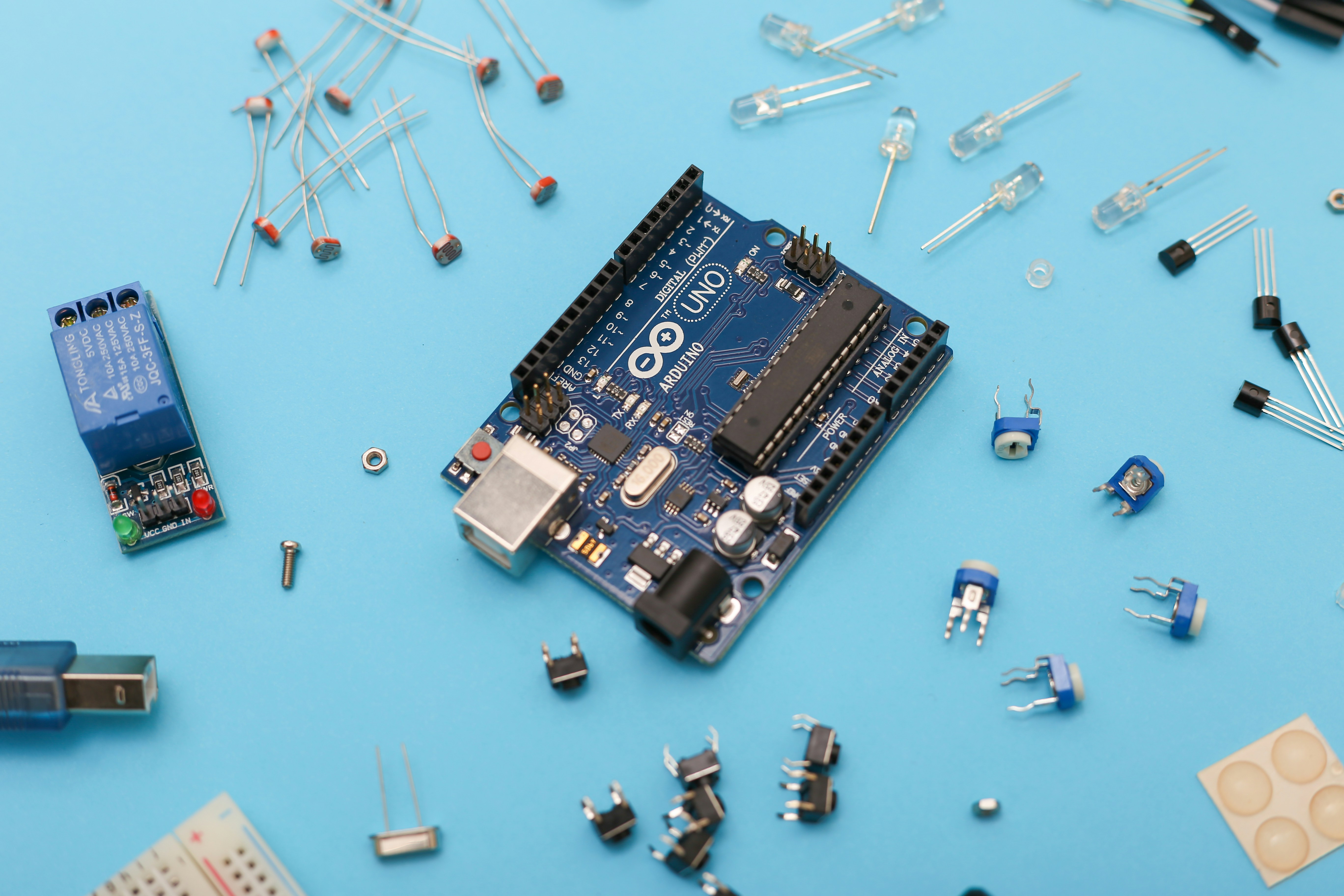
Before we dive deeper, let’s take a quick trip down memory lane to understand how Arduino coding evolved into the powerhouse it is today.
The Birth of Arduino and Its Coding Philosophy
Arduino was born in 2005 at the Interaction Design Institute Ivrea in Italy. The goal? To democratize electronics and programming by creating an easy-to-use platform for artists, designers, and hobbyists. The coding environment was designed to be simple yet powerful, based on C++ but abstracted enough to avoid overwhelming beginners.
Key Milestones in Arduino Coding Development
- 2005: Arduino IDE 1.0 introduced — simple editor, basic compilation, and upload tools.
- 2010-2015: Explosion of libraries and community-contributed code examples, making complex projects accessible.
- 2022: Launch of Arduino IDE 2.0 — modern editor with autocompletion, live debugging, and code navigation.
- Present: Integration with Arduino Cloud and mobile apps, enabling IoT projects and remote control.
Why Arduino Code Stands Out
- Open Source: Both hardware and software are open, encouraging innovation and customization.
- Community Driven: Millions of users contribute libraries, tutorials, and projects.
- Cross-Platform: Runs on Windows, macOS, and Linux, plus cloud-based options.
Want to see Arduino’s journey in action? The Arduino official site has a treasure trove of historical insights and resources.
🧰 Understanding Arduino Code Basics: Syntax, Structure, and Functions
If you’ve ever peeked at an Arduino sketch and thought, “What’s going on here?” — you’re not alone. Let’s break down the fundamental building blocks of Arduino code so you can write your own confidently.
Anatomy of an Arduino Sketch
Every Arduino program, or sketch, has two mandatory functions:
setup(): Runs once when the board powers on or resets. Use it to initialize pins, start serial communication, or configure sensors.loop(): Runs repeatedly aftersetup(). This is where your main program logic lives.
void setup() { pinMode(13, OUTPUT); // Set digital pin 13 as output } void loop() { digitalWrite(13, HIGH); // Turn LED on delay(1000); // Wait 1 second digitalWrite(13, LOW); // Turn LED off delay(1000); // Wait 1 second } Key Syntax Elements
- Functions: Blocks of reusable code, e.g.,
digitalWrite(),delay(). - Variables: Store data, e.g.,
int sensorValue;. - Comments: Use
//for single-line or/* ... */for multi-line comments. - Control Structures:
if,for,whileto control program flow.
Digital vs Analog Pins
- Digital Pins: Read or write HIGH (5V) or LOW (0V).
- Analog Pins: Read a range of voltages (0-5V) and convert to values between 0-1023.
Functions You’ll Use Often
| Function | Purpose | Example |
|---|---|---|
pinMode(pin, mode) |
Set pin as INPUT or OUTPUT | pinMode(7, INPUT); |
digitalWrite(pin, value) |
Set digital pin HIGH or LOW | digitalWrite(13, HIGH); |
digitalRead(pin) |
Read digital pin state | int buttonState = digitalRead(2); |
analogRead(pin) |
Read analog pin value | int sensorVal = analogRead(A0); |
delay(ms) |
Pause program for ms milliseconds | delay(500); |
For a deeper dive, check out our Arduino coding languages category.
🔢 Top 10 Essential Arduino Code Examples for Beginners
Nothing beats learning by doing! Here are 10 must-try Arduino code examples that cover the essentials and spark your creativity.
1. Blink LED (Classic Starter)
Blink the onboard LED on pin 13. The perfect first sketch.
2. Button Press Detection
Read a pushbutton and turn an LED on/off accordingly.
3. Analog Sensor Reading
Read a potentiometer’s value and print it to the Serial Monitor.
4. Servo Motor Control
Move a servo motor to different angles using Servo.h.
5. Ultrasonic Distance Sensor
Measure distance using an HC-SR04 sensor and display it.
6. RGB LED Color Mixing
Control an RGB LED’s colors with PWM pins.
7. LCD Display Text
Show messages on a 16×2 LCD using the LiquidCrystal library.
8. Temperature Sensor Reading
Read temperature from an LM35 sensor and convert to Celsius.
9. PWM Fan Speed Control
Control a DC fan speed with PWM output.
10. Simple Reaction Timer Game
Measure reaction time using LEDs and buttons.
Why These Examples?
They cover digital I/O, analog input, PWM, libraries, and user interaction — the bread and butter of Arduino coding. Each example teaches a core concept that you’ll reuse in countless projects.
Want the full code and step-by-step guides? Head over to our Robotics Education section for detailed tutorials.
💡 How to Write Efficient and Clean Arduino Code: Best Practices
Writing code that just works is one thing — writing code that’s efficient, readable, and maintainable is another. Here’s how we at Robotic Coding™ keep our Arduino projects sharp.
Keep It Simple and Modular
- Break your code into functions with clear purposes.
- Avoid huge
loop()functions; delegate tasks to smaller functions.
Use Meaningful Variable Names
- Instead of
int a;, useint buttonPin;— it’s self-explanatory.
Avoid Magic Numbers
- Define constants with
#defineorconstfor pin numbers and thresholds.
const int ledPin = 13; const int buttonPin = 2; Optimize Memory Usage
- Use
byteinstead ofintwhen possible to save RAM. - Avoid dynamic memory allocation (e.g.,
malloc) on Arduino.
Comment and Document
- Explain why, not just what.
- Keep comments up-to-date.
Use Libraries Wisely
- Prefer well-maintained libraries like those from Arduino or Adafruit.
- Check library size and dependencies to avoid bloating your sketch.
Test and Debug Incrementally
- Upload small code sections and test hardware interactions step-by-step.
- Use
Serial.print()generously to monitor variables.
Example: Clean Blink Sketch
const int ledPin = 13; // Onboard LED pin void setup() { pinMode(ledPin, OUTPUT); } void loop() { blinkLED(ledPin, 1000); } void blinkLED(int pin, unsigned long interval) { digitalWrite(pin, HIGH); delay(interval); digitalWrite(pin, LOW); delay(interval); } This approach makes your code reusable and easier to maintain.
⚙️ Exploring Arduino Libraries: Boost Your Projects with Prebuilt Code
Libraries are your secret weapon to accelerate development and add complex functionality without reinventing the wheel.
What Are Arduino Libraries?
They are collections of pre-written code that provide functions and classes to interact with hardware or perform common tasks.
Popular Arduino Libraries We Love
| Library Name | Purpose | Source |
|---|---|---|
Servo.h |
Control servo motors | Arduino Servo Library |
Wire.h |
I2C communication | Arduino Wire Library |
LiquidCrystal.h |
Control LCD displays | Arduino LiquidCrystal |
Adafruit_Sensor |
Sensor abstraction | Adafruit GitHub |
ESP8266WiFi |
WiFi for ESP8266 boards | ESP8266 Arduino Core |
How to Install and Use Libraries
- Open Arduino IDE.
- Go to Sketch > Include Library > Manage Libraries.
- Search for the library by name.
- Click Install.
- Include it in your sketch with
#include <LibraryName.h>.
Benefits of Using Libraries
- Save time and effort.
- Access tested and optimized code.
- Simplify complex hardware interactions.
Drawbacks to Watch For
- Some libraries can be bulky and increase sketch size.
- Compatibility issues may arise with certain Arduino board models.
- Over-reliance can limit learning core concepts.
Our Recommendation
Start with libraries for complex hardware like sensors or displays, but try to understand underlying code to build your skills.
📡 Integrating Sensors and Modules with Arduino Code: Step-by-Step Guides
Sensors and modules are the eyes and ears of your Arduino projects. Coding them right is crucial for reliable data and smooth operation.
Step 1: Choose Your Sensor/Module
Popular options include:
- Ultrasonic distance sensors (HC-SR04)
- Temperature sensors (DHT11, LM35)
- Light sensors (photoresistors)
- Motion sensors (PIR)
- Displays (OLED, LCD)
Step 2: Connect Hardware Correctly
- Follow wiring diagrams carefully.
- Use breadboards and jumper wires for prototyping.
- Check voltage and pin compatibility.
Step 3: Install Required Libraries
Many sensors have dedicated libraries. For example, DHT sensors use the DHT.h library.
Step 4: Write or Adapt Code
Use example sketches as a starting point. Here’s a snippet for reading a DHT11 temperature sensor:
# include <DHT.h> # define DHTPIN 2 # define DHTTYPE DHT11 DHT dht(DHTPIN, DHTTYPE); void setup() { Serial.begin(9600); dht.begin(); } void loop() { float temp = dht.readTemperature(); if (isnan(temp)) { Serial.println("Failed to read from DHT sensor!"); return; } Serial.print("Temperature: "); Serial.print(temp); Serial.println(" °C"); delay(2000); } Step 5: Test and Calibrate
- Use Serial Monitor to verify readings.
- Calibrate sensors if needed (e.g., adjust thresholds).
Troubleshooting Tips
- Check wiring and power supply.
- Confirm library compatibility with your Arduino board.
- Use Serial prints to debug sensor values.
For more detailed sensor integration tutorials, visit our Robotics Education category.
🛠️ Debugging and Troubleshooting Arduino Code Like a Pro
Even the best coders hit snags. Debugging Arduino code can be tricky but with the right tools and mindset, you’ll squash bugs like a champ.
Common Arduino Coding Issues
- Sketch won’t compile
- Upload errors
- Unexpected sensor readings
- Hardware not responding
- Program crashes or freezes
Debugging Tools and Techniques
| Tool/Method | Description | Usage Tip |
|---|---|---|
| Serial Monitor | Print debug info | Use Serial.begin(9600); and Serial.print() liberally |
| Arduino IDE Debugger | Step through code (IDE 2.0 feature) | Set breakpoints and watch variables |
| LED Blink Tests | Verify hardware pins | Blink an LED to confirm pin functionality |
| Multimeter | Check voltages and connections | Essential for hardware troubleshooting |
| Code Folding | Manage large codebases | Use the Command Palette “Fold All” to collapse code sections |
Step-by-Step Debugging Approach
- Isolate the problem: Comment out sections to narrow down the issue.
- Check wiring: Hardware issues are often the culprit.
- Use Serial prints: Output variable states and program flow.
- Simplify your code: Reduce to minimal reproducible example.
- Consult documentation and forums: The Arduino Forum is a goldmine.
Anecdote from Robotic Coding™
We once spent hours chasing a sensor glitch, only to discover a loose jumper wire. Lesson learned: hardware checks first, code second!
🚀 Advanced Arduino Coding Techniques: Interrupts, Timers, and Communication Protocols
Ready to level up? Let’s explore some advanced coding techniques that unlock powerful capabilities.
Interrupts: Respond Instantly to Events
Interrupts let your Arduino react immediately to external signals without waiting for the main loop.
- Use
attachInterrupt()to specify an interrupt service routine (ISR). - Great for buttons, sensors, or communication signals.
volatile bool buttonPressed = false; void setup() { pinMode(2, INPUT_PULLUP); attachInterrupt(digitalPinToInterrupt(2), ISR_button, FALLING); } void loop() { if (buttonPressed) { // Handle button press buttonPressed = false; } } void ISR_button() { buttonPressed = true; } Timers: Precise Timing Without delay()
Avoid blocking your code with delay() by using timers and the millis() function for non-blocking delays.
unsigned long previousMillis = 0; const long interval = 1000; void loop() { unsigned long currentMillis = millis(); if (currentMillis - previousMillis >= interval) { previousMillis = currentMillis; // Do something every second } } Communication Protocols
- I2C: Two-wire protocol for sensors and displays. Use
Wire.h. - SPI: Faster protocol for SD cards, displays. Use
SPI.h. - UART/Serial: Communication with PCs or other devices via Serial ports.
Benefits of Mastering These Techniques
- More responsive and efficient programs.
- Ability to handle multiple tasks simultaneously.
- Integration with complex hardware ecosystems.
For a deep dive into advanced Arduino programming, visit our Robotics category.
🎮 Fun Arduino Code Projects to Try at Home
Who says coding can’t be fun? Here are some entertaining projects that combine learning with play.
Reaction Speed Game
Test your reflexes by programming LEDs and buttons to measure reaction time. Great for beginners and a crowd-pleaser!
Sonar Scanner
Use an ultrasonic sensor and servo motor to create a radar-like scanner that detects objects around you.
Automated Plant Watering System
Combine moisture sensors and pumps to keep your plants hydrated automatically.
Digital Dice
Roll a virtual dice with LEDs or a small display, perfect for board game nights.
Home Automation Basics
Control lights or fans remotely using Bluetooth or WiFi modules.
Why These Projects?
They blend coding, electronics, and real-world applications, making learning immersive and rewarding.
For detailed guides and code, check out our Arduino tutorials.
📚 Recommended Arduino IDEs and Code Editors for Maximum Productivity
Choosing the right development environment can make or break your coding experience.
Arduino IDE 2.0 — The Official Powerhouse
- Modern editor with autocompletion, code navigation, and live debugging.
- Cross-platform support (Windows, macOS, Linux).
- Open source and actively developed.
- Supports code folding via Command Palette (F1 > Fold All).
- Integrates with Arduino CLI for advanced workflows.
Arduino CLI
- Command-line interface for building, compiling, and uploading sketches.
- Perfect for automation and integration with other tools.
Alternative Editors with Arduino Support
| Editor | Features | Notes |
|---|---|---|
| Visual Studio Code + PlatformIO | Advanced code editing, debugging, version control | Popular among pros |
| Sloeber (Eclipse-based) | Full IDE with project management | Steeper learning curve |
| Atom + Arduino Plugin | Lightweight, customizable | Good for quick edits |
Our Pick at Robotic Coding™
We use Arduino IDE 2.0 for most projects due to its balance of simplicity and power. For complex projects, VS Code with PlatformIO is unbeatable.
For downloads and official info, visit Arduino Software.
🛡️ Security Considerations When Writing Arduino Code for IoT Devices
As Arduino projects increasingly connect to the internet, security becomes paramount.
Common IoT Security Risks
- Unauthorized access to devices
- Data interception and tampering
- Firmware hijacking
- Privacy breaches
Best Practices for Secure Arduino Coding
- Use encrypted communication protocols like TLS when possible.
- Implement authentication for remote access.
- Keep firmware updated with security patches.
- Avoid hardcoding sensitive credentials; use secure storage.
- Validate all inputs to prevent injection attacks.
- Limit device functionality to the minimum necessary.
Libraries and Tools for Security
ArduinoBearSSLfor SSL/TLS support.WiFiNINAwith secure WiFi features.- Use Arduino Cloud’s secure IoT platform for device management.
Real-World Example
We helped a client secure a smart home system by integrating encrypted MQTT communication and two-factor authentication, preventing unauthorized control.
For more on IoT and security, explore our Artificial Intelligence category which often overlaps with IoT security.
💬 Community and Resources: Where to Find Arduino Code Examples and Help
No coder is an island. The Arduino community is vast and supportive — here’s where to tap into it.
Official Arduino Resources
- Arduino Forum — Ask questions, share projects, and get expert help.
- Arduino Project Hub — Thousands of project tutorials with code.
- Arduino GitHub — Source code and libraries.
Popular Third-Party Platforms
- Stack Overflow — Q&A for coding problems.
- Adafruit Learning System — Tutorials and libraries.
- Instructables Arduino Projects — Step-by-step guides.
- Hackster.io — Community projects and contests.
YouTube Channels We Recommend
- Paul McWhorter — Beginner-friendly Arduino tutorials.
- Jeremy Blum — In-depth Arduino project walkthroughs.
- Robotic Coding™ Channel — Our own tutorials and tips (stay tuned!).
Insider Tip
When stuck, try searching with specific error messages or hardware names plus “Arduino” — chances are someone else has solved it.
🔔 Important Notices and Updates in Arduino Coding
The Arduino ecosystem evolves rapidly. Here are some must-know updates and notices to keep you ahead of the curve.
Arduino IDE 2.x Updates
- The new IDE is faster and supports modern features like live debugging and autocompletion.
- Code folding is available but accessed via the Command Palette (F1 > Fold All).
- Some users miss a dedicated “Collapse All” button — hopefully coming soon!
Arduino CLI Advancements
- CLI tools now support full project management, ideal for advanced users and CI/CD pipelines.
Arduino Cloud and IoT Apps
- New mobile apps for Android and iOS allow remote monitoring and control.
- Cloud-based code editing and deployment simplify IoT development.
Compatibility Notes
- Arduino IDE 2.0 requires macOS 10.15 Catalina or newer on Mac.
- Legacy IDE 1.8.19 remains available for older systems.
Legal and Licensing
- Arduino software is provided “as is” with no warranties. Always back up your code!
Stay updated via the official Arduino Blog and GitHub repositories.
Before we move on, don’t miss the insightful first YouTube video embedded above! It brilliantly explains the Arduino Uno board’s components and how basic Arduino code interacts with hardware. The video’s breakdown of digital vs analog pins, the role of the ATmega328P microcontroller, and the classic Blink sketch is a perfect primer for beginners. Plus, it highlights how starter kits can kickstart your Arduino coding adventure — something we wholeheartedly recommend at Robotic Coding™.
That’s a wrap for the core content sections! Ready to master Arduino code? Stay tuned for the conclusion and more expert insights coming up next.
🎯 Conclusion: Mastering Arduino Code for Your Next Project
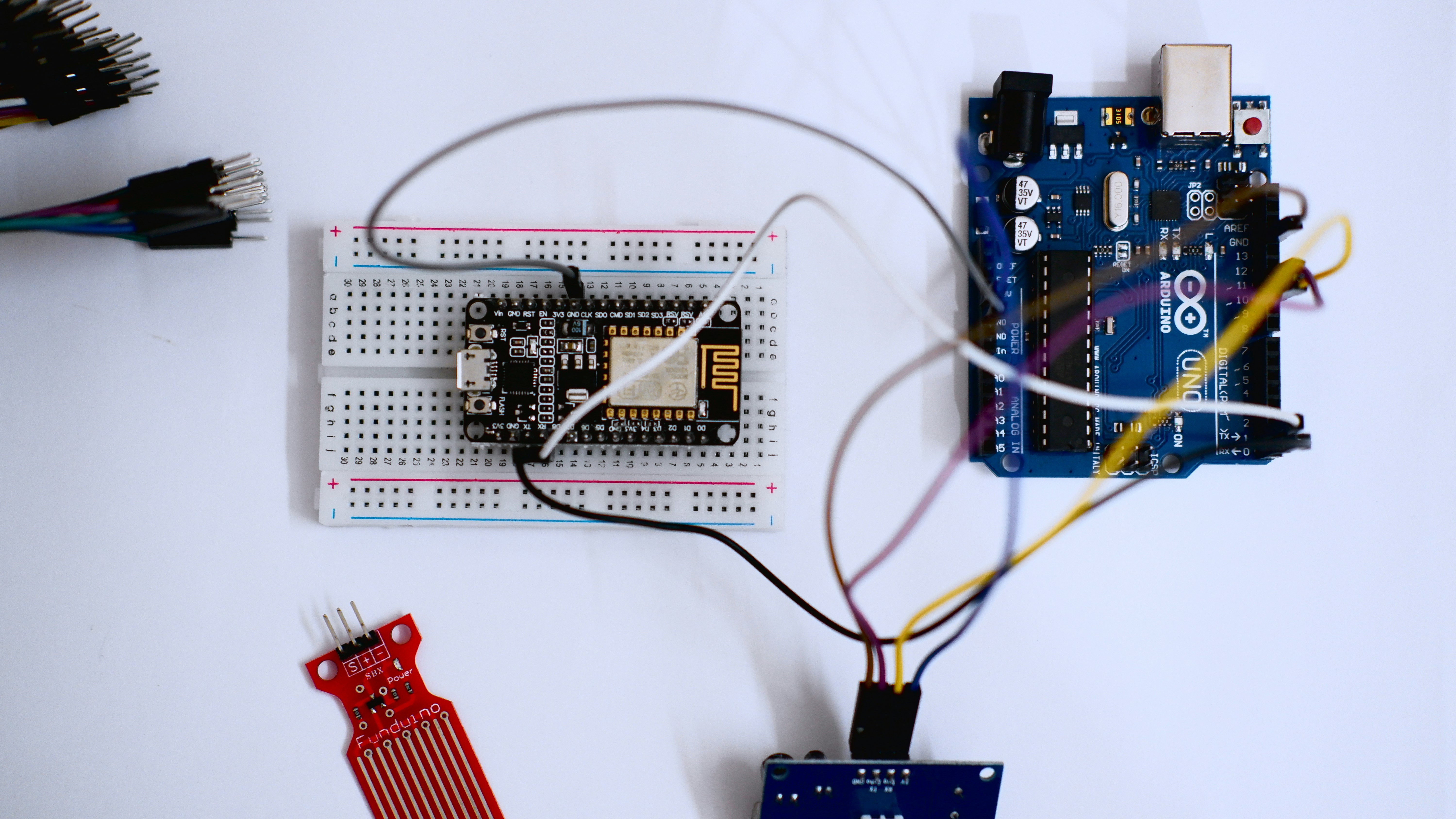
After this deep dive into the world of Arduino code, we hope you’re buzzing with ideas and confidence to tackle your own projects. From the fundamental syntax and essential code examples to advanced techniques like interrupts and timers, you now have a solid roadmap to navigate the Arduino ecosystem.
Wrapping Up the Arduino Coding Journey
- Arduino IDE 2.0 is a powerhouse for coding, debugging, and managing your sketches, especially with features like autocompletion and code folding via the Command Palette.
- Leveraging libraries and community resources accelerates your learning and project development.
- Understanding hardware integration and security considerations is crucial for robust, real-world IoT and robotic applications.
- Debugging skills and incremental testing save you time and frustration.
Remember the story we shared about managing a 6000+ line sketch? The key takeaway is that mastering your tools and writing clean, modular code is just as important as the code itself.
Final Thought from Robotic Coding™
Arduino coding is a journey of continuous learning and experimentation. Don’t be afraid to break things, ask questions, or explore new libraries and hardware. The vibrant Arduino community and resources are always there to back you up.
Ready to light up your first LED or build a full-fledged robot? The world of Arduino awaits — and we’ll be here cheering you on every step of the way! 🚀
🔗 Recommended Links for Arduino Coding Enthusiasts
Ready to gear up? Here are some of the best products and books to kickstart or elevate your Arduino coding experience:
-
Arduino R4 Starter Kit:
-
Adafruit Sensor Libraries and Hardware:
-
Books for Arduino Coding Mastery:
-
Visual Studio Code + PlatformIO for Arduino:
❓ Frequently Asked Questions About Arduino Code
How do I run my Arduino code?
To run your Arduino code (called a sketch), open it in the Arduino IDE, connect your Arduino board via USB, select the correct board and port under the Tools menu, then click the Upload button. The IDE compiles the code and transfers it to the board, which immediately starts executing it.
How to do Arduino coding?
Arduino coding involves writing sketches in the Arduino IDE using a simplified C++ language. You write your logic inside two main functions: setup() for initialization and loop() for continuous execution. Use built-in functions like digitalWrite(), digitalRead(), and libraries to interact with hardware.
Does Arduino use Python or C++?
Arduino primarily uses a simplified version of C++ for its sketches. However, some boards and environments support Python variants like MicroPython, but the official Arduino IDE and most libraries are C++ based.
Is Arduino code C or C++?
Arduino code is based on C++, but with many simplifications and abstractions to make it beginner-friendly. The Arduino IDE automatically handles some of the boilerplate code, so you can focus on the core logic.
What are the basic Arduino code commands for beginners?
Key commands include:
pinMode(pin, mode)— sets pin as input or outputdigitalWrite(pin, value)— sets digital pin HIGH or LOWdigitalRead(pin)— reads digital pin stateanalogRead(pin)— reads analog sensor valuesdelay(ms)— pauses execution for specified milliseconds
How can I write Arduino code for controlling a robot?
Start by defining the motors and sensors your robot uses. Use libraries like Servo.h for servo motors or motor driver libraries for DC motors. Write functions to control movement (forward, backward, turn) and sensor feedback loops for obstacle detection. Modularize your code for clarity and reuse.
What is the best Arduino code example for robotic projects?
A classic example is the line-following robot code, which reads reflectance sensors and adjusts motor speeds to follow a line. It combines sensor reading, decision-making, and motor control — the core of many robotic behaviors.
How do I debug Arduino code when programming robots?
Use the Serial Monitor extensively to print sensor values and motor commands. Test hardware components individually before integrating. Use Arduino IDE 2.0’s live debugger for step-through debugging. Also, check wiring and power supply carefully.
Can Arduino code be used for autonomous robot navigation?
Yes! Arduino can control autonomous robots by processing sensor inputs (ultrasonic, infrared, GPS) and executing movement commands. However, for complex navigation, combining Arduino with more powerful processors or AI modules is common.
What libraries are essential for Arduino robotic coding?
Servo.hfor servo motorsAFMotororAdafruit Motor Shieldlibraries for DC motorsNewPingfor ultrasonic sensorsWire.hfor I2C communicationSoftwareSerialfor additional serial devices
How do I upload and run Arduino code on a robot?
Connect your Arduino board on the robot to your computer via USB. Open your sketch in the Arduino IDE, select the correct board and port, and click Upload. Once uploaded, the robot runs the code autonomously. For wireless updates, use Bluetooth or WiFi modules with OTA (Over-The-Air) programming.
📖 Reference Links and Further Reading on Arduino Code
- Arduino Official Website – Home
- Arduino Software and IDE Downloads
- Arduino Forum
- Arduino GitHub Repository
- Adafruit Arduino Libraries
- PlatformIO for Arduino Development
- Arduino Cloud IoT Platform
- Arduino IDE 2.x Features
- Arduino CLI Releases
Explore these trusted sources to deepen your Arduino coding knowledge and stay updated with the latest tools and techniques. Happy coding!