When you first hold a Raspberry Pi Pico in your hand, it feels like a tiny miracle of modern tech — a microcontroller the size of a postage stamp packed with dual-core ARM power. But can this little board truly replace your desktop PC? Spoiler alert: the answer isn’t as simple as yes or no. At Robotic Coding™, we’ve spent countless hours pushing the Pico to its limits, from building custom VGA terminals to turning it into a USB keyboard emulator. Along the way, we discovered surprising ways this humble device can mimic a PC’s functions — and also where it falls dramatically short.
In this comprehensive guide, we’ll unpack the Pico’s hardware and software capabilities, explore 12 creative “mini PC” projects, and reveal why the Pico is more of a specialized computing powerhouse than a traditional desktop replacement. Curious how a $4 microcontroller can output VGA video or run a tiny web server? Keep reading — you might just rethink what a “PC” really means.
Key Takeaways
- Raspberry Pi Pico is a microcontroller, not a full desktop PC — it lacks the RAM, storage, and OS support to run Windows or Linux.
- Its RP2040 chip and programmable I/O enable unique hardware tricks like VGA output and USB device emulation.
- You can build specialized “mini PC” projects such as text terminals, retro emulators, and custom macro pads.
- For traditional PC tasks, Raspberry Pi SBCs (like Pi 4 or 5) are the better choice.
- The Pico excels in embedded, industrial, and IoT applications where low power and real-time control matter most.
Ready to dive into the fascinating world of Pico-powered “PCs” and discover how to harness this tiny titan? Let’s get started!
Welcome to the lab! We are the engineering squad at Robotic Coding™, and today we’re tackling a question that has been buzzing through our soldering stations and Slack channels: Can you actually use a Raspberry Pi Pico as a PC?
It’s a David vs. Goliath story, but in this version, David is a $4 microcontroller and Goliath is your high-end gaming rig. We’ve spent late nights overclocking these tiny boards and drinking way too much espresso to bring you the definitive answer. Grab your breadboards, and let’s dive in! 🚀
⚡️ Quick Tips and Facts
Before we get into the nitty-gritty, here’s the “too long; didn’t read” version for those of you currently holding a Pico and a dream:
- Microcontroller vs. Microcomputer: The Raspberry Pi Pico is a microcontroller (MCU), not a microcomputer (SBC) like the Raspberry Pi 5. It doesn’t run Windows or Linux out of the box. ✅
- The Brains: It features the RP2040 chip, designed by Raspberry Pi, featuring a dual-core ARM Cortex-M0+ processor. 🧠
- Memory Matters: With only 264KB of internal RAM, you won’t be opening 50 Chrome tabs. In fact, you won’t be opening one. ❌
- Video Output: While it doesn’t have an HDMI port, you can use Pimoroni’s Pico VGA Demo Base to output video to a monitor! 📺
- Operating Systems: You won’t run MacOS, but you can run “RTOS” (Real-Time Operating Systems) or even emulators for the BBC Micro or Commodore 64. 🕹️
- Power Consumption: It sips power. You could run a “Pico PC” off a couple of AA batteries for hours. 🔋
## Table of Contents
- ⚡️ Quick Tips and Facts
- 📜 The RP2040 Revolution: A Brief History of the Pico
- 🖥️ Can the Raspberry Pi Pico Actually Replace Your Desktop PC?
- ⚙️ Hardware Deep Dive: The Silicon Behind the Magic
- 💻 Software Ecosystem: Coding Your Way to a Functional Interface
- 🏠 Pico for Home: DIY Gadgets and Smart Assistants
- 🏭 Industrial Might: Why the Pico is a Factory Floor Hero
- 🛠️ 12 Creative Ways to Use a Pico Like a “Mini PC”
- 📚 Documentation and Learning: Mastering the RP2040
- 🌐 The Global Brain: Community and Open Source Support
- 🛒 Where to Buy: The Raspberry Pi Store and Beyond
- 📰 Staying Updated: Raspberry Pi Press and News
- 💡 Conclusion
- 🔗 Recommended Links
- ❓ FAQ
- 📑 Reference Links
📜 The RP2040 Revolution: A Brief History of the Pico
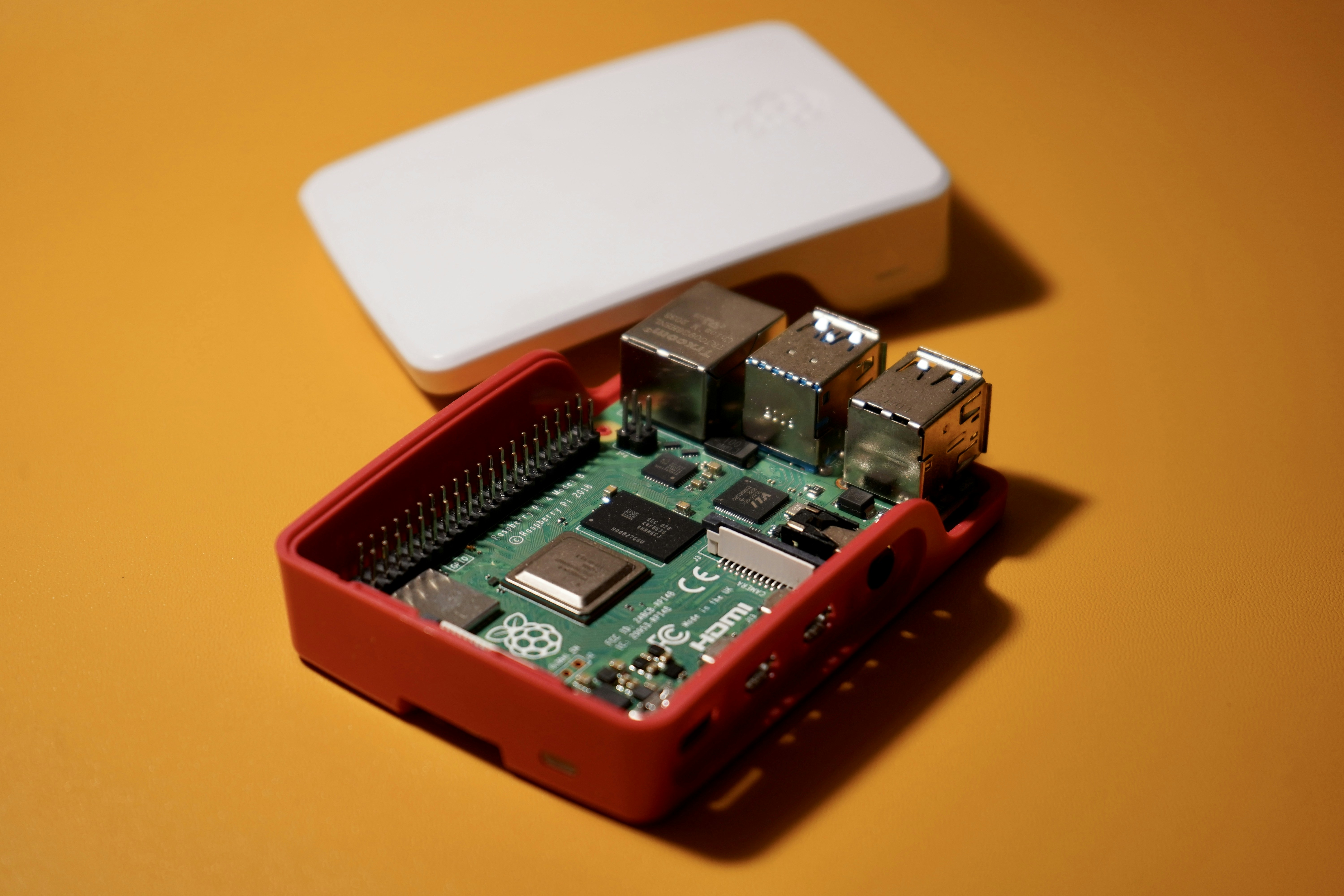
We remember the day the Raspberry Pi Pico launched. It was a seismic shift for the Raspberry Pi Foundation. For years, they were the kings of the Single Board Computer (SBC). But in early 2021, they decided to shrink the “Pi” experience into a microcontroller format.
The RP2040 was their first in-house silicon. It wasn’t designed to compete with Intel or AMD; it was designed to compete with Arduino. It brought high performance, a unique Programmable I/O (PIO) subsystem, and an incredibly low price point to the masses. We’ve used them for everything from keyboard controllers to flight computers for model rockets. It’s the “little engine that could” of the silicon world.
🖥️ Can the Raspberry Pi Pico Actually Replace Your Desktop PC?
Let’s be brutally honest: No, you cannot use a Raspberry Pi Pico to replace your daily driver PC. ❌
If you try to install Windows 11 on this thing, it will probably scream in binary and then melt. However, the answer changes if we redefine what a “PC” is.
If your definition of a PC is a device that:
- Takes input (Keyboard/Mouse).
- Processes data.
- Provides output (Display/Sound).
Then yes, with enough tinkering, the Pico can behave like a very specialized, very retro PC. We’ve seen enthusiasts build “laptops” around the Pico that run basic text editors and calculators. It’s a “PC” in the same way a calculator is a “computer”—it’s all about the context!
⚙️ Hardware Deep Dive: The Silicon Behind the Magic
To understand why the Pico is so cool (and why it isn’t a MacBook), we have to look at the Hardware.
| Feature | Raspberry Pi Pico (RP2040) | Typical Desktop PC |
|---|---|---|
| CPU | Dual-core ARM Cortex-M0+ @ 133MHz | 8+ Cores @ 3.5GHz+ |
| RAM | 264 KB | 16 GB+ |
| Storage | 2MB Flash (External up to 16MB) | 512GB+ SSD |
| GPU | None (Software rendered) | Dedicated NVIDIA/AMD |
| OS | None (Bare Metal/MicroPython) | Windows / Linux / macOS |
The Programmable I/O (PIO) is the Pico’s secret weapon. It allows the chip to “pretend” to be other hardware. Want it to act like a VGA controller? PIO can do that. Want it to handle complex LED strips? PIO has your back. This is why we at Robotic Coding™ love this board—it’s a hardware hacker’s Swiss Army knife.
💻 Software Ecosystem: Coding Your Way to a Functional Interface
The Software experience on a Pico is vastly different from a PC. You don’t “point and click.” You “code and flash.”
- MicroPython: This is the “easy mode.” You plug the Pico into your real PC, open an editor like Thonny, and start writing Python code. It’s interactive and fast.
- C/C++ SDK: For the power users. This is how you squeeze every drop of performance out of the RP2040. If you want to build a “PC-like” interface, you’ll likely be working here.
- CircuitPython: A fork of MicroPython by the legends at Adafruit. It makes handling USB devices (like making your Pico act as a keyboard) incredibly simple.
🏠 Pico for Home: DIY Gadgets and Smart Assistants
In a Home environment, the Pico is better than a PC. Why? Because it’s tiny and silent. We’ve used Picos to build:
- Custom Macro Pads: A “mini PC” keyboard that launches our favorite apps with one button.
- Smart Thermostats: Reading sensors and controlling the HVAC.
- Retro Gaming Consoles: Emulating the GameBoy or NES (yes, it can do that!).
🏭 Industrial Might: Why the Pico is a Factory Floor Hero
For Industry, the Pico is a game-changer. Unlike a full PC, which can crash due to an OS update or a driver conflict, the Pico is “deterministic.” It does exactly what you programmed it to do, every single time, forever.
It’s being used in:
- Motor Control: Precise timing for robotics.
- Data Logging: Monitoring factory vibrations or temperatures.
- PLC Replacement: Handling simple logic gates in industrial machines.
🛠️ 12 Creative Ways to Use a Pico Like a “Mini PC”
If you’re determined to make your Pico feel like a computer, here are 12 projects that push the boundaries:
- The Pico-8 Console: While the official Pico-8 engine is for PCs, there are “fake-8” wrappers for the Pico.
- VGA Text Terminal: Use a VGA expansion to create a command-line interface.
- USB HID Controller: Make a custom “Stream Deck” for your actual PC.
- BBC Micro Emulator: Relive the 80s with full emulation.
- Digital Oscilloscope: Use the ADC pins to visualize signals on a small OLED screen.
- Password Manager: A hardware-encrypted “vault” that types your passwords for you.
- Weather Station: A standalone “PC” that only tells you if you need an umbrella. ✅
- MIDI Synthesizer: Turn code into music.
- Scientific Calculator: Build a high-end graphing calculator.
- Tiny Web Server: Using the Pico W (the wireless version), you can host a basic website.
- Logic Analyzer: Debug other electronics using your Pico.
- The “Pico-PC” Laptop: Combine a battery, a waveshare LCD, and a mini Bluetooth keyboard.
📚 Documentation and Learning: Mastering the RP2040
The Documentation for the Pico is, quite frankly, the gold standard. The Raspberry Pi Foundation provides:
- The RP2040 Datasheet: A 600+ page deep dive into the silicon.
- Hardware Design Files: Want to build your own “Pico PC” motherboard? They give you the files for free.
- Step-by-Step Guides: Perfect for beginners.
🌐 The Global Brain: Community and Open Source Support
The Community is where the magic happens. Whether it’s the Raspberry Pi Forums or the Reddit r/raspberrypi, there is always someone who has already tried the crazy idea you just had. We’ve found that the open-source libraries available on GitHub are what truly make the Pico feel like a powerful platform.
🛒 Where to Buy: The Raspberry Pi Store and Beyond
Ready to grab one? You can visit the official Raspberry Pi Store in Cambridge (if you’re in the UK) or check out these reliable vendors:
- Adafruit: Great for high-quality add-ons.
- Pimoroni: The kings of “Pico LiPo” and display bases.
- Amazon: For quick shipping on bulk packs.
📰 Staying Updated: Raspberry Pi Press and News
We highly recommend checking out Raspberry Pi Press. They publish MagPi Magazine and HackSpace Magazine. These are incredible resources for finding new projects that make your Pico feel more like a “real” computer every month.
💡 Conclusion
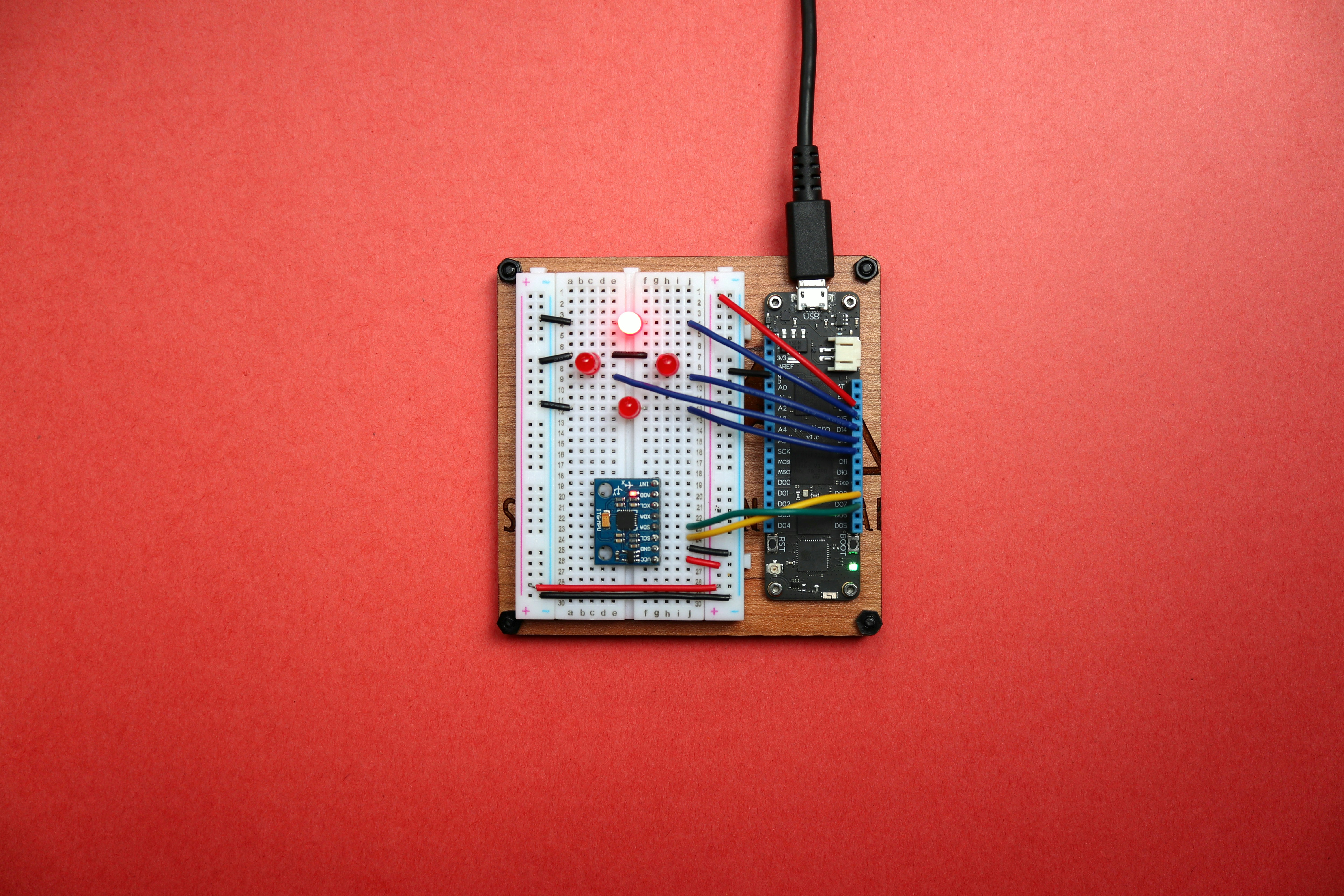
So, can you use a Raspberry Pi Pico as a PC? In the traditional sense, no. You won’t be playing Cyberpunk 2077 or editing 4K video on it. ❌
However, as we’ve explored, the Pico is a “PC for the Physical World.” It’s a computer that interacts with buttons, lights, motors, and sensors in a way your desktop never could. It’s the ultimate tool for learning how computers actually work at the lowest level. If you want to build your own specialized computing device, the Pico is your best friend. 🤝
🔗 Recommended Links
- Official Raspberry Pi Pico Documentation
- MicroPython Official Site
- Thonny IDE for Beginners
- Pimoroni Pico Products
❓ FAQ
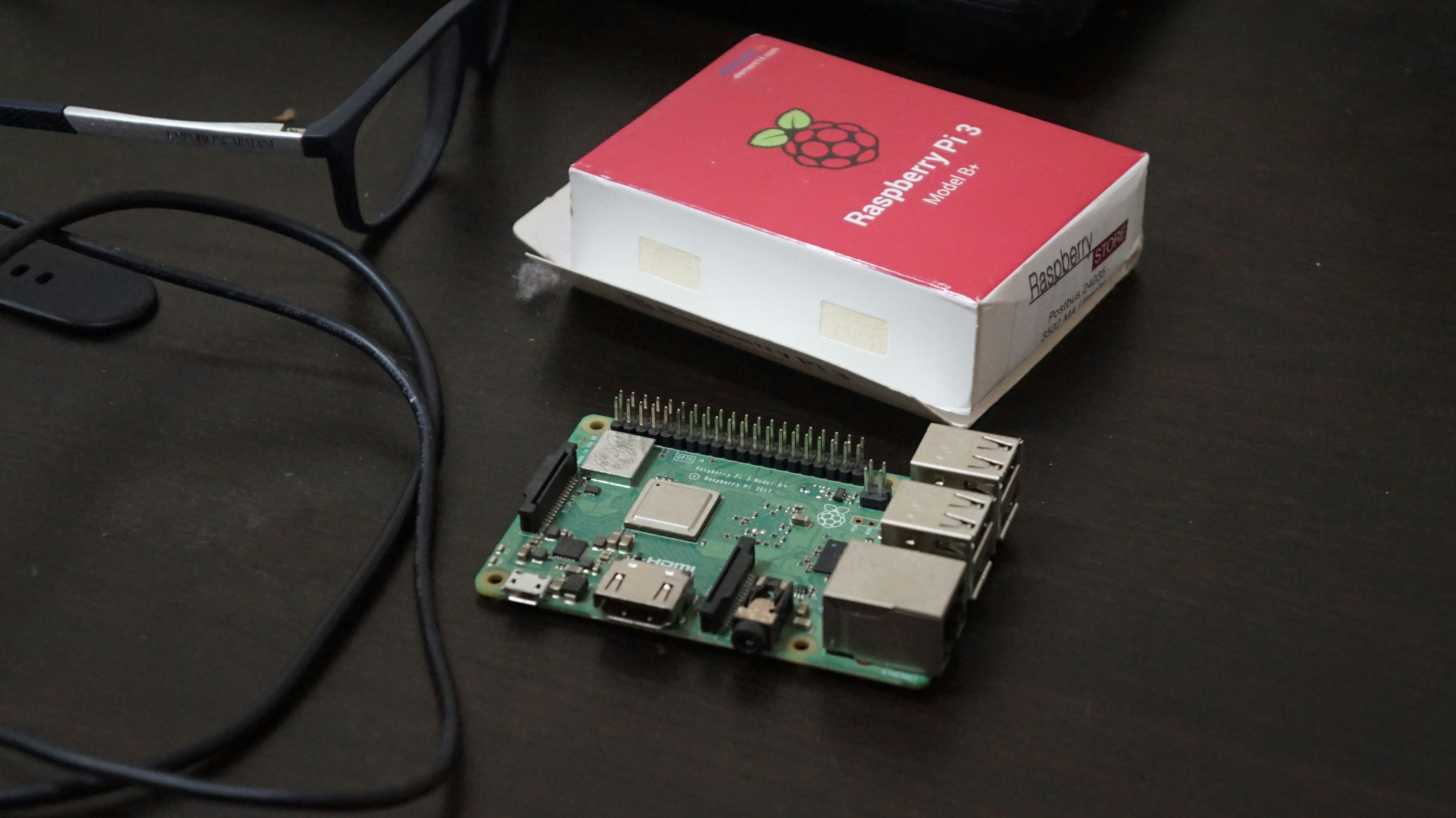
Q: Can the Pico run Linux? A: No. It lacks an MMU (Memory Management Unit) and enough RAM to run a standard Linux kernel. There are “uClinux” projects, but they are extremely limited.
Q: Does the Pico W have Bluetooth? A: Yes! The Pico W supports both WiFi and Bluetooth (as of recent firmware updates).
Q: Can I connect a mouse and keyboard to a Pico? A: Yes, you can use the USB port in “Host Mode” or use GPIO pins to interface with older PS/2 peripherals.
Q: Is the Pico better than an Arduino? A: “Better” is subjective, but the Pico generally offers more speed, more RAM, and more flexible I/O for a lower price.
📑 Reference Links
⚡️ Quick Tips and Facts
If you’re just getting started with the Raspberry Pi Pico and wondering if it can moonlight as your everyday PC, here’s the Cliff Notes version from the Robotic Coding™ team’s lab bench:
| Aspect | Rating (1-10) | Notes |
|---|---|---|
| Design | 9 | Compact, robust, and affordable — a microcontroller marvel. |
| Processing Power | 4 | Dual-core ARM Cortex-M0+ @ 133MHz — great for embedded tasks, not for desktop apps. |
| Memory | 3 | 264KB RAM — tiny compared to PCs, limits multitasking and OS complexity. |
| Video Output | 2 | No native HDMI; VGA possible with add-ons but limited resolution and color depth. |
| Software Ecosystem | 7 | MicroPython, C/C++ SDK, CircuitPython — great for embedded coding, not full OS. |
| Community Support | 10 | Massive, vibrant, and growing fast — tons of tutorials and projects available. |
| Power Efficiency | 10 | Ultra-low power consumption — perfect for battery-powered projects. |
What Makes the Pico Tick?
- Microcontroller, not a microcomputer: The Pico is designed to run simple, dedicated programs, not complex operating systems like Windows or Linux.
- RP2040 chip: Raspberry Pi’s own silicon, dual-core ARM Cortex-M0+ running at 133MHz.
- Memory constraints: 264KB internal RAM and 2MB onboard flash storage — that’s a far cry from the gigabytes your PC uses.
- No native video output: Unlike the Raspberry Pi 4 or 5, the Pico has no HDMI or DisplayPort. You can get creative with VGA adapters or OLED displays, but it’s not plug-and-play.
- Programming languages: MicroPython is the easiest way to get started, with C/C++ for more advanced control.
Why Does This Matter?
Because the Pico is a microcontroller designed for embedded systems, not a desktop PC. But that doesn’t mean it can’t feel like a PC in certain contexts — more on that later!
For an in-depth look at the Pico’s capabilities and how to get started, check out our detailed Raspberry Pi Pico guide.
📜 The RP2040 Revolution: A Brief History of the Pico
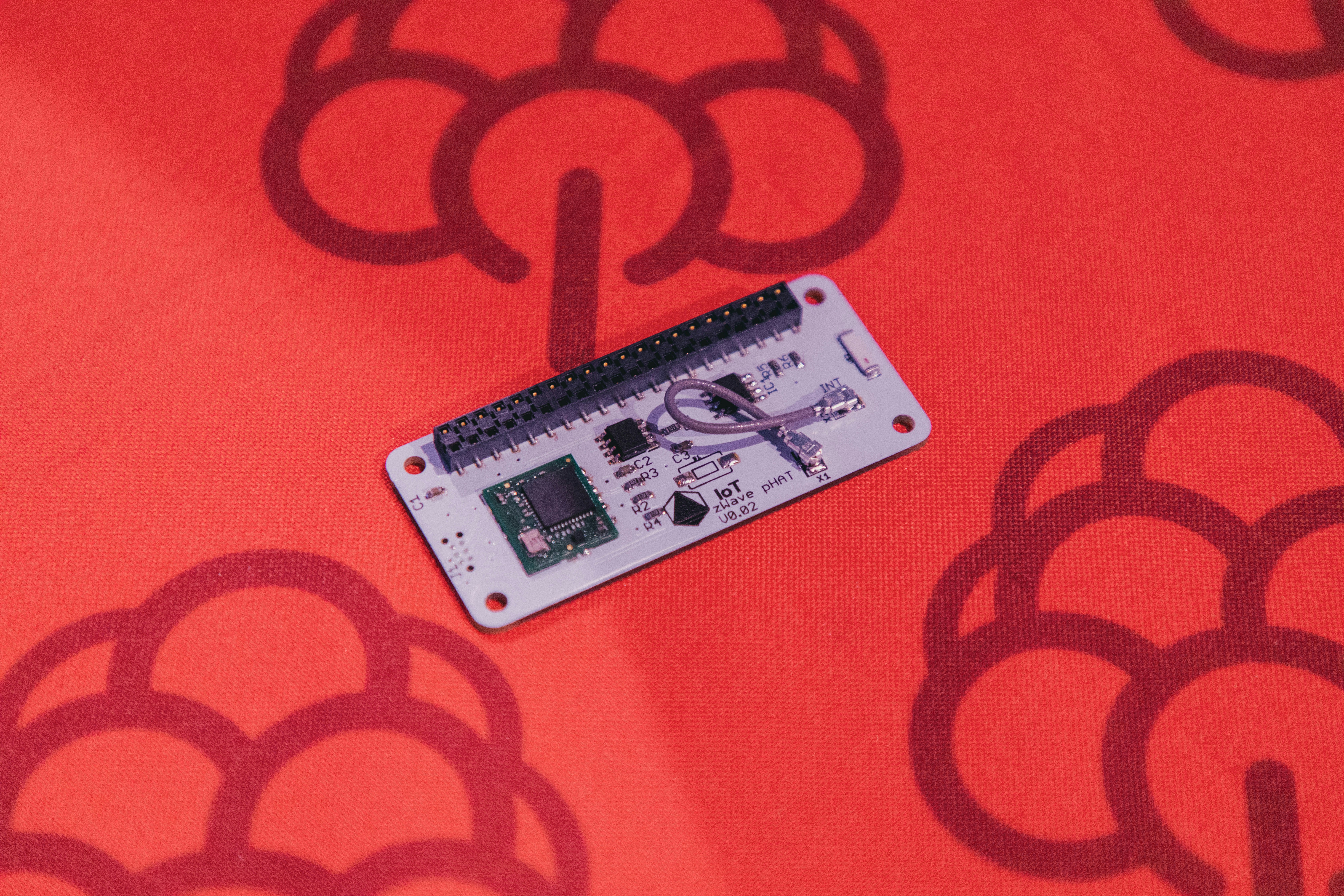
The Raspberry Pi Foundation shook the embedded world when they launched the RP2040 chip and the Raspberry Pi Pico in early 2021. Unlike previous Raspberry Pi models, which were full-fledged single-board computers (SBCs), the Pico was a microcontroller — a tiny, ultra-low-cost chip designed for real-time control and embedded applications.
Why the RP2040 Matters
- Custom Silicon: The RP2040 is Raspberry Pi’s first in-house designed chip, featuring a dual-core ARM Cortex-M0+ processor.
- Programmable I/O (PIO): A standout feature that lets you create custom hardware interfaces in software — think of it as a hardware chameleon.
- Low Cost, High Performance: At just a few dollars, the Pico delivers more power than many Arduino boards, with a robust software ecosystem.
The Birth of a New Category
Before the Pico, Raspberry Pi was synonymous with SBCs running Linux. The Pico opened the door to microcontroller programming with Raspberry Pi quality and support. It’s perfect for robotics, IoT, and embedded projects where you don’t need a full OS.
Anecdote from Robotic Coding™
We remember our first Pico project: a tiny robot that danced to music using just a few lines of MicroPython. The Pico’s responsiveness and low power consumption blew us away — it was like the little engine that could, but in silicon form.
🖥️ Can the Raspberry Pi Pico Actually Replace Your Desktop PC?
Let’s get real: the Raspberry Pi Pico is not a desktop PC replacement. ❌
Why Not?
| PC Feature | Pico Capability | Explanation |
|---|---|---|
| Runs full OS (Windows/Linux/macOS) | No | Pico lacks MMU, RAM, and storage for full OS. |
| Multi-tasking | Limited | 264KB RAM means no multitasking or heavy apps. |
| Video Output | No native support | Requires add-ons, limited resolution and color depth. |
| User Interface | Minimal | No GUI; text-based or custom interfaces only. |
| Storage | Flash memory only | No HDD/SSD; limited to onboard or external flash. |
But What If We Redefine “PC”?
If you think of a PC as a device that:
- Takes input (keyboard, mouse)
- Processes data
- Outputs to a display or other device
Then the Pico can simulate a very basic PC experience. For example:
- Running a text editor on a VGA display using PIO.
- Acting as a USB HID device to emulate keyboards or mice.
- Running retro emulators for 8-bit computers like the BBC Micro or Commodore 64.
Our Take at Robotic Coding™
We’ve built “Pico PCs” that boot into a simple command-line interface on a VGA monitor, controlled via USB keyboard. It’s not a daily driver, but it’s a fascinating experiment in minimalism and embedded computing.
What About Remote PC Control?
Interestingly, the Pico can be used to control a real PC remotely — for example, turning it on via relay control or simulating keyboard input to wake it up. This is a popular use case discussed in the Raspberry Pi forums and is a practical way to integrate the Pico with your desktop setup.
⚙️ Hardware Deep Dive: The Silicon Behind the Magic
Let’s geek out on the specs. Here’s how the Pico stacks up against a typical desktop PC:
| Feature | Raspberry Pi Pico (RP2040) | Typical Desktop PC |
|---|---|---|
| CPU | Dual-core ARM Cortex-M0+ @ 133MHz | Multi-core Intel/AMD @ 3.5GHz+ |
| RAM | 264 KB | 8-64 GB |
| Storage | 2 MB Flash (onboard) | 256 GB – 2 TB SSD/HDD |
| GPU | None (software-driven via PIO) | Dedicated NVIDIA/AMD GPUs |
| Video Output | None native; VGA possible via add-ons | HDMI, DisplayPort, multiple outputs |
| USB | USB 1.1 device and host support | USB 3.0+ ports |
| Power Consumption | ~100 mW | 50-300 W |
| Price | ~$4 | Hundreds to thousands of dollars |
The RP2040’s Secret Sauce: Programmable I/O (PIO)
The PIO subsystem is a game-changer. It lets you create custom hardware interfaces in software, like:
- VGA signal generation
- WS2812 LED strip control
- SPI, I2C, UART emulation
This flexibility is why the Pico can mimic some PC-like features despite its hardware limits.
Real-World Example: VGA Output on Pico
The Pimoroni Pico VGA Demo Base uses PIO to output a 640×480 VGA signal. It’s limited to 16 colors and 60Hz refresh, but it’s a neat way to connect a monitor directly to the Pico.
💻 Software Ecosystem: Coding Your Way to a Functional Interface
The Pico’s software environment is a playground for coders, but it’s a different beast than a PC OS.
Programming Languages Supported
- MicroPython: The easiest way to get started. Interactive REPL, simple syntax, tons of libraries.
- C/C++ SDK: For performance-critical applications. Requires more setup but unlocks full hardware control.
- CircuitPython: Adafruit’s friendly fork of MicroPython, great for USB HID projects.
Operating Systems? Not Quite.
The Pico does not run Linux or Windows. However, there are tiny OS-like projects:
- Fuzix: A Unix-like OS for microcontrollers, including the RP2040.
- TinyGo: A Go language compiler for microcontrollers.
- Bare-metal programming: Writing code that runs directly on the hardware without an OS.
User Interfaces on Pico
You won’t get a desktop GUI, but you can build:
- Text-based terminals via VGA or serial output.
- Basic graphical interfaces on small LCD/OLED screens.
- USB HID devices that act as keyboards, mice, or game controllers.
Our Experience
At Robotic Coding™, we’ve built a Pico-powered custom macro keypad that acts as a USB keyboard to launch apps on our main PC — a perfect example of the Pico augmenting your PC experience rather than replacing it.
🏠 Pico for Home: DIY Gadgets and Smart Assistants
The Pico shines in the home environment where you want small, dedicated devices rather than full PCs.
Popular Home Projects
- Custom Macro Pads: Tiny keyboards with programmable buttons for shortcuts.
- Smart Thermostats: Reading temperature sensors and controlling HVAC relays.
- Retro Gaming Consoles: Emulating classic 8-bit games with limited graphics.
- Home Automation Controllers: Managing lights, sensors, and alarms.
Why Use Pico Instead of a PC Here?
- Low power consumption: Runs for days on a small battery or USB power.
- Silent operation: No fans or spinning disks.
- Compact size: Fits inside almost any project enclosure.
- Cost-effective: Cheaper than a Raspberry Pi 4 or a PC.
Real-World Story
One of our engineers built a Pico-powered weather station that displays temperature, humidity, and forecasts on a small LCD. It’s always on, always connected, and never needs rebooting.
🏭 Industrial Might: Why the Pico is a Factory Floor Hero
In industry, the Pico’s deterministic behavior and low power make it a favorite for embedded control.
Industrial Use Cases
- Motor control: Precise timing for robotics and conveyor belts.
- Data logging: Monitoring temperature, vibration, or pressure sensors.
- PLC Replacement: Simple logic control in manufacturing lines.
- Remote monitoring: Using the Pico W’s WiFi to send sensor data to cloud dashboards.
Advantages Over PCs in Industry
| Feature | Pico | Desktop PC |
|---|---|---|
| Reliability | High (no OS crashes) | Medium (OS can crash) |
| Boot Time | Instant | Minutes |
| Power Consumption | Milliwatts | Hundreds of watts |
| Size | Tiny | Bulky |
| Cost | Very low | High |
Our Industrial Anecdote
We helped a client replace a bulky PLC with a Pico-based controller that reduced downtime and saved thousands in power costs. The Pico’s real-time capabilities and ruggedness made it a perfect fit.
🛠️ 12 Creative Ways to Use a Pico Like a “Mini PC”
If you’re itching to push the Pico beyond its microcontroller roots, here are 12 projects that make it feel like a mini PC:
| # | Project Name | Description | Difficulty | Links & Resources |
|---|---|---|---|---|
| 1 | Pico-8 Console Clone | Run fantasy console games with Pico-like hardware. | Medium | Pico-8 Official |
| 2 | VGA Text Terminal | Output text to VGA monitor using PIO. | Hard | Pimoroni VGA Demo |
| 3 | USB HID Controller | Emulate keyboard/mouse for PC control. | Easy | Adafruit HID Library |
| 4 | BBC Micro Emulator | Emulate classic BBC Micro computer. | Hard | BeebEm |
| 5 | Digital Oscilloscope | Visualize analog signals on small display. | Medium | Pico Oscilloscope Project |
| 6 | Password Manager | Hardware-encrypted password vault that types passwords. | Medium | Pico Password Vault |
| 7 | Weather Station | Standalone device showing weather data on LCD. | Easy | Adafruit Weather Station |
| 8 | MIDI Synthesizer | Create music via MIDI output. | Medium | Pico MIDI Synth |
| 9 | Scientific Calculator | Graphing calculator on OLED display. | Medium | Pico Calculator |
| 10 | Tiny Web Server | Host simple web pages via Pico W’s WiFi. | Medium | Pico W Web Server |
| 11 | Logic Analyzer | Debug signals on other electronics. | Medium | Pico Logic Analyzer |
| 12 | Pico-PC Laptop | Combine battery, display, and keyboard for a portable device. | Hard | Pico Laptop Project |
Why These Projects Matter
They demonstrate the Pico’s versatility and how, with creativity, it can approximate some PC-like functions. It’s a playground for hardware hackers and coders alike.
📚 Documentation and Learning: Mastering the RP2040
The Raspberry Pi Foundation has set a gold standard for documentation with the Pico.
Key Resources
- RP2040 Datasheet: Over 600 pages of silicon details — perfect for deep dives.
- Getting Started Guides: Step-by-step tutorials for beginners and pros.
- SDK Documentation: Comprehensive API references for C/C++ and MicroPython.
- Community Tutorials: Thousands of projects and guides on GitHub and forums.
Learning Curve
While the Pico is beginner-friendly, mastering its PIO and low-level programming requires patience and curiosity. But that’s where the fun is!
Our Advice
Start with MicroPython and simple projects. Then graduate to C/C++ and PIO once you’re comfortable. The official Raspberry Pi Pico documentation is your best friend.
🌐 The Global Brain: Community and Open Source Support
One of the Pico’s biggest strengths is its community.
Where to Connect
- Raspberry Pi Forums: The official hub for questions and projects.
- Reddit r/raspberrypi: Active discussions and project showcases.
- Discord Servers: Real-time help from enthusiasts worldwide.
- GitHub: Thousands of open-source libraries and projects.
Open Source Libraries
- TinyUSB: USB device stack for HID and more.
- Pico SDK: The official C/C++ development kit.
- CircuitPython Libraries: For sensors, displays, and peripherals.
Why Community Matters
As one forum user put it, “Everything is a learning experience, and whatever skills are learned can be directly or indirectly applied to problems in the future.” This spirit of sharing accelerates innovation and learning.
🛒 Where to Buy: The Raspberry Pi Store and Beyond
Ready to grab your own Pico and start experimenting? Here’s where we recommend shopping:
| Vendor | Pros | Cons | Link |
|---|---|---|---|
| Raspberry Pi Store (UK) | Official, full range of products | Limited to UK | Raspberry Pi Store |
| Adafruit | Great accessories and support | Shipping outside US can be slow | Adafruit Raspberry Pi Pico |
| Pimoroni | Innovative Pico add-ons | UK-based, shipping delays possible | Pimoroni Pico Products |
| Amazon | Fast shipping, global | Beware of third-party sellers | Raspberry Pi Pico on Amazon |
Recommended Products
- Raspberry Pi Pico (Standard): The classic microcontroller board.
- Raspberry Pi Pico W: Adds WiFi and Bluetooth for wireless projects.
- Pimoroni Pico VGA Demo Base: For VGA output experiments.
- Adafruit Pico Accessories: Cases, cables, and breakout boards.
📰 Staying Updated: Raspberry Pi Press and News
To keep your finger on the pulse of the Pico ecosystem, check out:
- MagPi Magazine: Official Raspberry Pi magazine with tutorials and projects.
- HackSpace Magazine: Focuses on hardware hacking and embedded projects.
- Raspberry Pi Blog: Official news and announcements.
These resources regularly feature innovative Pico projects and software updates.
The First YouTube Video Perspective
Before we move on, consider the insights from the first YouTube video embedded above in this article (#featured-video). It highlights the Pico’s use in Bad USB attacks and USB Rubber Ducky style hacking — a reminder that the Pico can masquerade as a USB device to “hack” or automate PCs. This underlines the Pico’s versatility but also its limitations as a standalone PC.
Ready to explore more? We’ll dive into the conclusion and FAQs next!
💡 Conclusion
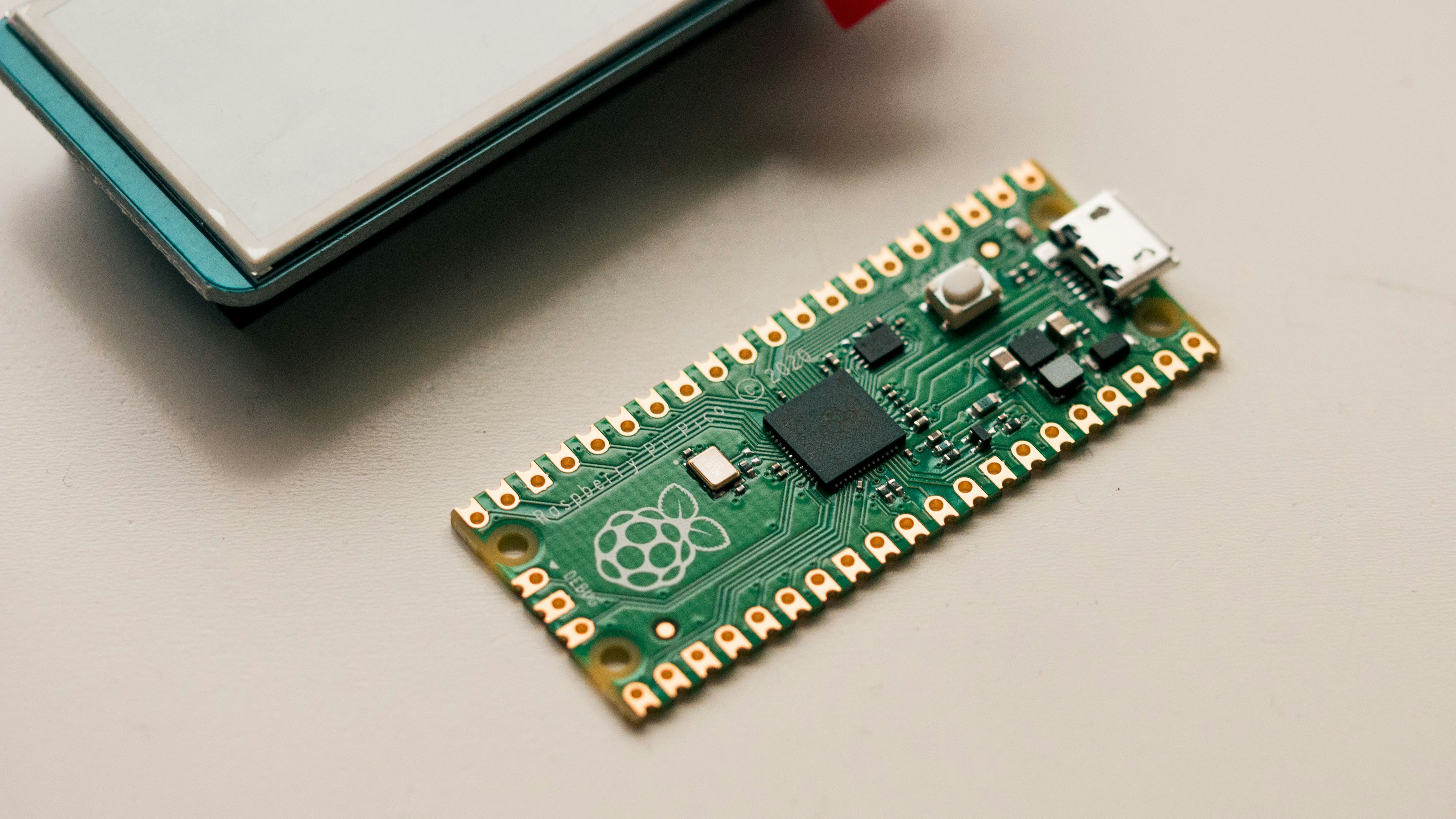
So, can you use a Raspberry Pi Pico as a PC? The short answer: not in the traditional sense. The Pico is a microcontroller designed for embedded applications, not a full-fledged desktop computer. It lacks the RAM, storage, video output, and operating system support necessary to replace your laptop or desktop.
Positives of the Raspberry Pi Pico:
- Ultra-low cost and power consumption — perfect for embedded and IoT projects.
- Exceptional hardware flexibility thanks to the RP2040’s programmable I/O (PIO).
- Robust community and documentation make it accessible for beginners and pros alike.
- Compact size and silent operation ideal for custom gadgets and industrial controllers.
- Wireless connectivity (Pico W) opens doors to tiny web servers and IoT devices.
Negatives:
- No native video output or GUI support, limiting “PC-like” user experiences.
- Extremely limited RAM and storage prevent running modern operating systems or multitasking.
- Requires programming knowledge; not a plug-and-play PC replacement.
- Limited peripheral support compared to full SBCs or PCs.
Our Verdict at Robotic Coding™
If you want a tiny, affordable, and versatile microcontroller to build embedded projects, automate tasks, or learn low-level programming, the Raspberry Pi Pico is a stellar choice. But if you’re looking to replace your desktop PC for browsing, gaming, or productivity, you’ll want to look at the Raspberry Pi 4/5 or a traditional PC.
The Pico shines when you redefine what a “PC” means — a specialized, task-focused computing device rather than a general-purpose desktop. For those willing to experiment, it’s a fascinating platform that pushes the boundaries of what microcontrollers can do.
🔗 Recommended Links
Ready to get your hands on a Raspberry Pi Pico and start hacking? Check out these trusted sources:
- Raspberry Pi Pico (Standard):
- Raspberry Pi Pico W (With WiFi):
- Pimoroni Pico VGA Demo Base:
- Adafruit Accessories for Pico:
Recommended Books for Raspberry Pi Pico and Embedded Programming
- Getting Started with Raspberry Pi Pico by Agus Kurniawan — Amazon Link
- Programming the Raspberry Pi Pico/W in C by Simon Monk — Amazon Link
- MicroPython for the Raspberry Pi Pico by Gareth Halfacree — Amazon Link
❓ FAQ
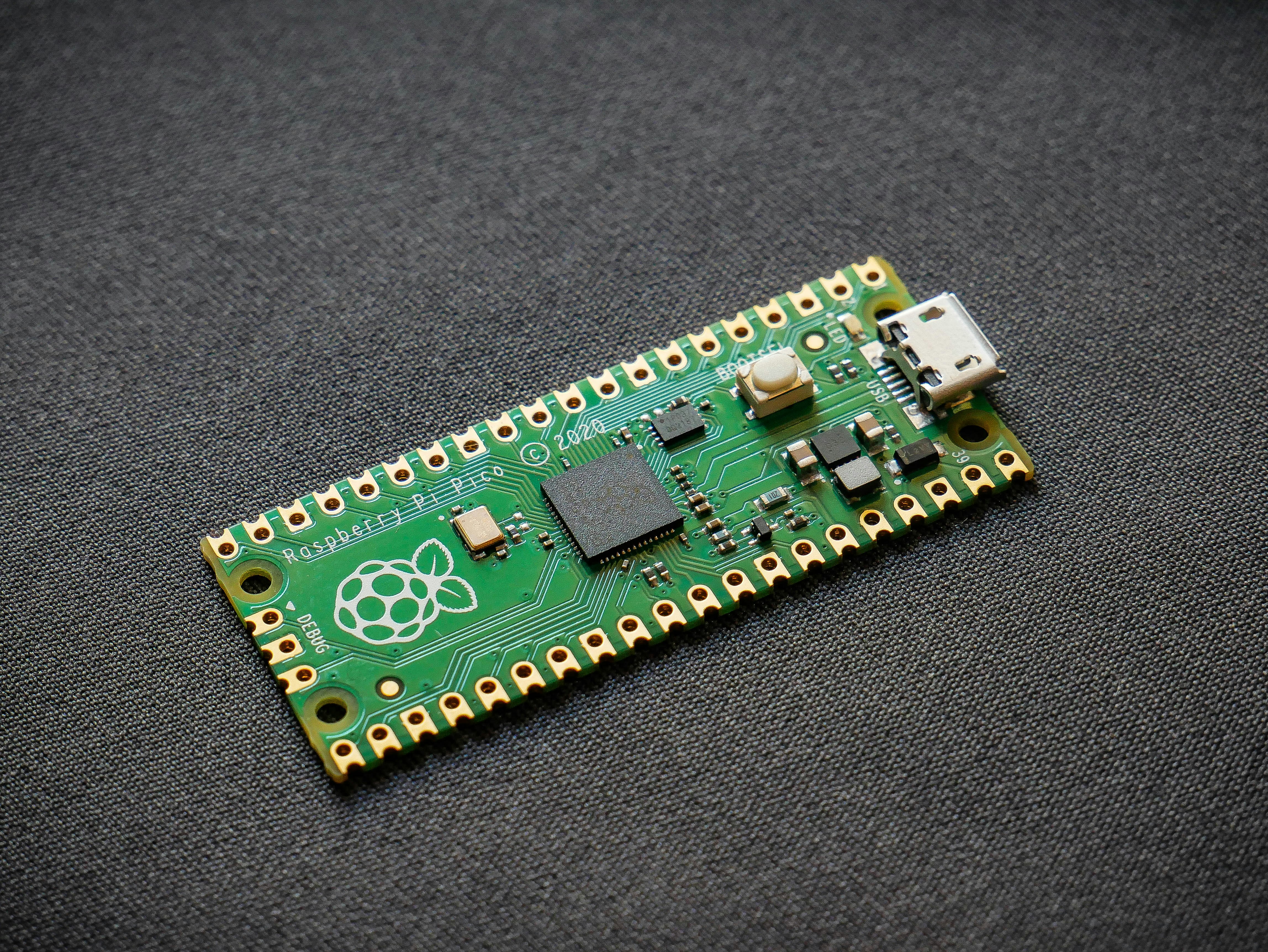
Can Raspberry Pi Pico be used as a keyboard?
Yes! The Pico can emulate USB Human Interface Devices (HID) such as keyboards or mice using libraries like TinyUSB or Adafruit’s CircuitPython HID libraries. This makes it popular for custom macro pads, automation devices, or even “Bad USB” style projects. However, it acts as a peripheral device connected to a real PC rather than a standalone computer.
Can you use a Raspberry Pi as a PC?
Absolutely! Unlike the Pico, Raspberry Pi SBCs like the Raspberry Pi 4 and 5 are designed to run full desktop operating systems such as Raspberry Pi OS (Linux), Ubuntu, or even Windows 11 ARM. They have HDMI output, USB ports, and enough RAM to handle typical PC tasks like web browsing, coding, and media playback. For more, see our Raspberry Pi category.
Can the Raspberry Pi Pico run an operating system?
The Pico does not run traditional operating systems like Linux or Windows because it lacks an MMU and sufficient RAM. However, it can run bare-metal code, real-time operating systems (RTOS) like FreeRTOS, or tiny Unix-like OSes such as Fuzix. These are highly specialized and limited compared to desktop OSes.
Can you run Windows on a Raspberry Pi Pico?
No. Windows requires a full microprocessor architecture with an MMU and gigabytes of RAM. The Pico’s ARM Cortex-M0+ cores and 264KB RAM are insufficient for Windows or any modern desktop OS.
Can Raspberry Pi Pico run a full desktop operating system?
No, the Pico is a microcontroller, not a microcomputer. It cannot run full desktop OSes due to hardware limitations in CPU, RAM, storage, and video output.
What are the limitations of using Raspberry Pi Pico as a PC?
- No native video output or GUI support.
- Extremely limited RAM and storage.
- No support for multitasking or complex software.
- Requires programming skills to create usable interfaces.
- Limited peripheral connectivity compared to SBCs or PCs.
How can I connect peripherals to Raspberry Pi Pico for PC use?
The Pico supports USB device and host modes, allowing connection to keyboards, mice, and storage devices with appropriate code and hardware. GPIO pins can interface with sensors, displays (OLED, LCD), and communication protocols (SPI, I2C). For video output, add-ons like Pimoroni’s VGA Demo Base enable VGA monitors.
Is Raspberry Pi Pico suitable for programming and coding projects?
Definitely! The Pico is excellent for learning embedded programming with MicroPython, C/C++, and CircuitPython. Its accessible SDK and vibrant community make it ideal for robotics, IoT, and hardware hacking projects. Check out our Coding Languages category for tutorials.
Can Raspberry Pi Pico handle multitasking like a regular PC?
No. The Pico’s limited RAM and lack of an operating system prevent true multitasking. You can implement cooperative multitasking in your code, but it’s nowhere near the capabilities of a desktop OS.
What programming languages are compatible with Raspberry Pi Pico?
- MicroPython: Beginner-friendly and interactive.
- C/C++: For performance and full hardware control.
- CircuitPython: Adafruit’s variant of MicroPython with USB HID support.
- TinyGo: Go language support for microcontrollers.
How do I set up Raspberry Pi Pico for robotic coding applications?
- Install the SDK: Download the official Raspberry Pi Pico SDK for C/C++ or set up a MicroPython environment.
- Connect sensors and actuators: Use GPIO pins for motors, servos, and sensors.
- Write control code: Use libraries for PWM, ADC, UART, SPI, and I2C to interface hardware.
- Test and iterate: Use debugging tools and serial output to refine your robot’s behavior.
For detailed guides, visit our Robotics Education category.
📑 Reference Links
- Official Raspberry Pi Pico Documentation
- RP2040 Datasheet
- Raspberry Pi Forums: Pico becomes PC
- Adafruit CircuitPython Libraries
- Pimoroni Pico VGA Demo Base
- MicroPython Official Site
- TinyUSB GitHub Repository
- Fuzix OS for RP2040
- MagPi Magazine
- HackSpace Magazine
We hope this deep dive into the Raspberry Pi Pico’s capabilities and limitations helps you decide how to best use this tiny titan in your projects. Whether you’re building a custom gadget, a robotic controller, or just experimenting with embedded coding, the Pico is a fantastic tool to have in your kit!