
Have you ever wished programming microcontrollers was as easy as editing a text file? Welcome to the world of CircuitPython—a beginner-friendly, powerful language that transforms complex embedded coding into a fun, instant-feedback experience. At Robotic Coding™, we’ve seen how CircuitPython turns ideas into reality faster than ever, whether you’re building a blinking LED project or an IoT-enabled robot. Stick around, because later we’ll reveal the one common “gotcha” that even seasoned developers stumble on, and how to avoid it like a pro.
Did you know CircuitPython supports over 600 microcontroller boards and boasts a library ecosystem with 500+ specialized modules? That’s not just convenience—it’s a revolution in how we interact with hardware. Whether you’re a student, educator, or professional tinkerer, this guide will equip you with everything you need to get started, troubleshoot, and innovate confidently.
Key Takeaways
- CircuitPython offers instant code execution by making your microcontroller appear as a USB drive—no compiling required.
- Supported by Adafruit and a vibrant community, it’s perfect for beginners and rapid prototyping.
- Compatible with hundreds of boards, including Raspberry Pi Pico and Adafruit Circuit Playground Express.
- Extensive libraries simplify hardware interaction, from sensors to displays and IoT protocols.
- Watch out for blocking code pitfalls—we’ll show you how to keep your projects responsive.
- Ideal stepping stone before moving to more advanced embedded languages like MicroPython or Arduino C++.
Ready to jump in? Keep reading to explore hardware options, write your first script, and discover creative projects that will spark your imagination!
Table of Contents
- ⚡️ Quick Tips and Facts About CircuitPython
- 🔍 The Evolution and Origins of CircuitPython: A Brief History
- 🚀 Getting Started with CircuitPython: Your First Steps
- 🛠️ Essential Hardware Compatible with CircuitPython
- 📚 Understanding CircuitPython Libraries and Modules
- 💡 Writing Your First CircuitPython Script: A Hands-On Tutorial
- 🔧 Debugging and Troubleshooting CircuitPython Projects
- 🎨 Creative Projects You Can Build with CircuitPython
- 🌐 Integrating CircuitPython with IoT and Cloud Services
- 📈 Performance Tips and Best Practices for CircuitPython Coding
- 🤖 Comparing CircuitPython with MicroPython and Arduino
- 🛒 Where to Buy CircuitPython-Compatible Boards and Accessories
- 🔄 Updating and Maintaining Your CircuitPython Environment
- 🧩 Extending CircuitPython: Custom Libraries and Advanced Features
- 💬 Community and Support: Where to Find Help and Inspiration
- ✅ Conclusion: Why CircuitPython Is a Game-Changer for Beginners and Pros
- 🔗 Recommended Links for CircuitPython Enthusiasts
- ❓ Frequently Asked Questions About CircuitPython
- 📚 Reference Links and Resources for Deep Diving
If you’re looking for a deep dive into the specifics of this beginner-friendly language, check out our detailed guide on Circuit Python to see how it fits into the broader world of Coding Languages.
At Robotic Coding™, we’ve spent countless late nights debugging hardware, and we can confidently say that CircuitPython is the “easy button” for electronics. Whether you are a seasoned software engineer or a student just starting your journey in Robotics Education, this language removes the friction between your ideas and reality. But wait—is it really as simple as dragging and dropping a file? We’ll reveal the one “gotcha” that trips up even the pros later on.
⚡️ Quick Tips and Facts About CircuitPython
Before we dive into the nitty-gritty, here’s a “cheat sheet” of what makes CircuitPython the darling of the maker community.
| Feature | Detail |
|---|---|
| Base Language | Derived from MicroPython |
| Primary Sponsor | Adafruit Industries |
| Hardware Support | Over 600+ microcontroller boards |
| Library Ecosystem | 500+ specialized libraries for sensors and displays |
| No Compiling | Code runs instantly upon saving |
| File System | Appears as a USB drive named CIRCUITPY |
| Best Editor | Mu Editor is highly recommended |
Key Facts:
- ✅ No Drivers Needed: On most modern OSs, it just works.
- ✅ Beginner Friendly: As the experts at Adafruit say, “If you’re new to everything, this is the place to start!”
- ❌ Not for Real-Time: If you need microsecond precision for high-speed motor control in Robotics, C++ might still be your best friend.
🔍 The Evolution and Origins of CircuitPython: A Brief History
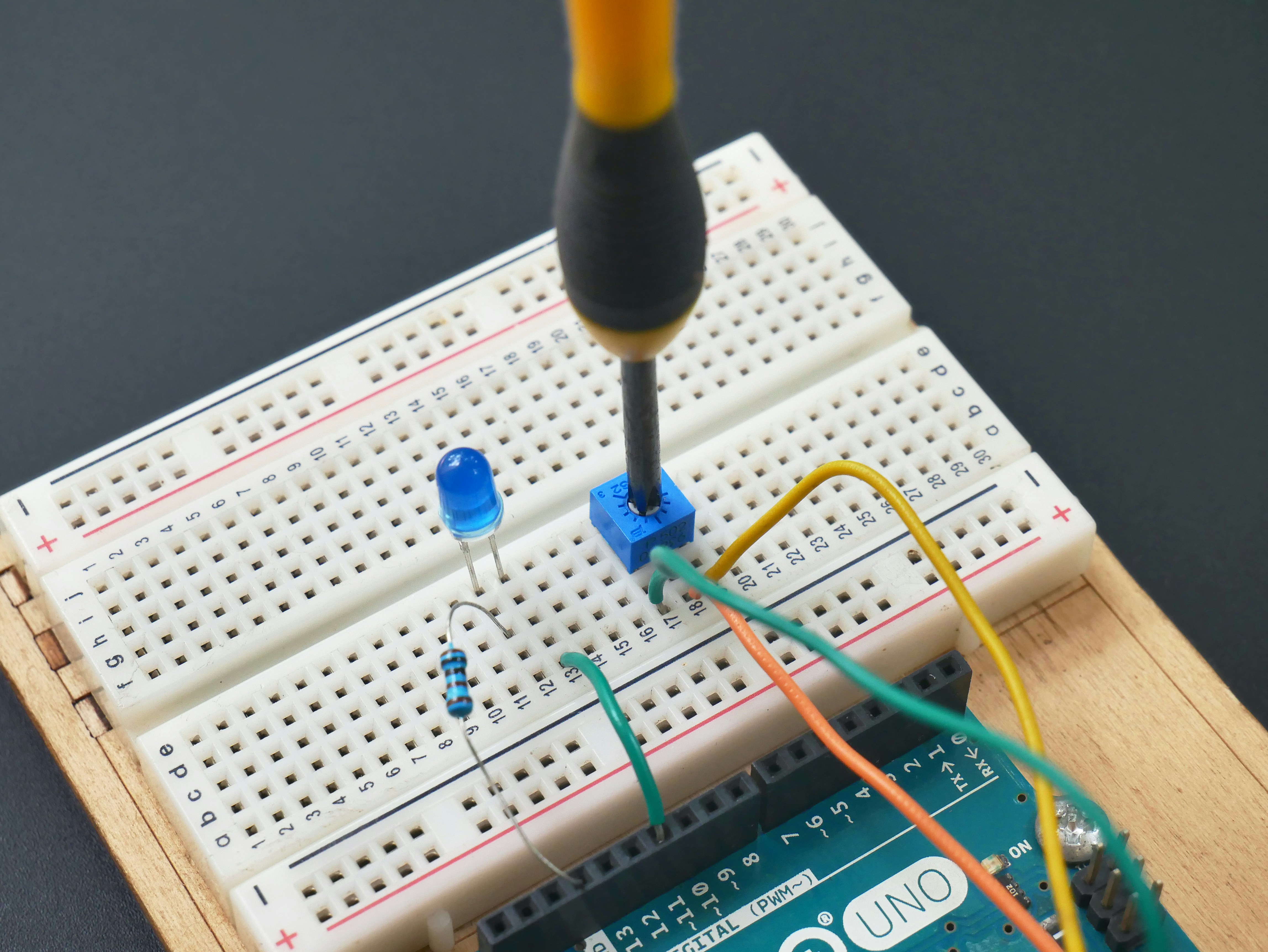
CircuitPython didn’t just appear out of thin air. It is a fork of MicroPython, which was originally created by Damien George after a successful Kickstarter in 2013. While MicroPython was designed to bring Python 3 to microcontrollers, Adafruit saw an opportunity to make it even more accessible for education.
In 2017, the team at Adafruit, led by Scott Shawcroft, launched CircuitPython. The goal? To create a version of Python that felt like using a USB thumb drive. We remember the “dark ages” of embedded programming where you had to install complex toolchains and wait minutes for code to compile. CircuitPython changed the game by making the board look like a disk drive. You save code.py, and boom—the code runs.
According to CircuitPython.org, the project is Open Source Software, meaning a global community of developers constantly improves it. However, as noted in the ClockworkPi Forum, porting CircuitPython to entirely new architectures can be “quite the bear.” This is why you see such strong support for specific chips like the RP2040 and SAMD21, while others lag behind.
🚀 Getting Started with CircuitPython: Your First Steps
Ready to jump in? The beauty of this ecosystem is the immediate feedback. Here is the workflow we use at Robotic Coding™:
- Plug it in: Connect your board to your PC via a high-quality USB cable.
- The “CIRCUITPY” Drive: Your computer will recognize the board as a flash drive.
- The Magic File: Look for a file named
code.py. This is where your logic lives. - Edit and Save: Use any text editor (we love Mu or VS Code) to change the code. The moment you hit Save, the board reboots and runs your new script.
Pro Tip: Always use a “data” USB cable. We’ve seen many beginners pull their hair out only to realize they were using a “charge-only” cable from an old pair of headphones! 🎧
🛠️ Essential Hardware Compatible with CircuitPython
Not all microcontrollers are created equal. If you want to leverage Artificial Intelligence at the edge or build complex Robotic Simulations, you need the right silicon.
Robotic Coding™ Hardware Ratings
| Board Name | Design | Ease of Use | Power | Overall Rating |
|---|---|---|---|---|
| Adafruit Circuit Playground Express | 10/10 | 10/10 | 6/10 | 9.5/10 |
| Raspberry Pi Pico | 8/10 | 9/10 | 8/10 | 8.5/10 |
| Adafruit Feather M4 Express | 9/10 | 8/10 | 9/10 | 8.7/10 |
| Espressif ESP32-S3 | 7/10 | 7/10 | 10/10 | 8.0/10 |
The All-Rounder: Raspberry Pi Pico
The Raspberry Pi Pico is the most cost-effective way to enter the world of CircuitPython. With the RP2040 chip, it has plenty of RAM to handle complex libraries.
The Educator’s Dream: Circuit Playground Express
This board is packed with LEDs, buttons, and sensors (motion, light, sound). It’s the ultimate “Introduction to Circuit Python” hardware because you don’t need to solder a single thing.
👉 Shop Hardware on:
- Raspberry Pi Pico: Amazon | Raspberry Pi Official
- Adafruit Circuit Playground Express: Amazon | Adafruit Official
- Adafruit Feather M4: Amazon | Adafruit Official
📚 Understanding CircuitPython Libraries and Modules
One of the biggest draws mentioned in the #featured-video is the massive library bundle. While standard Python has pip, CircuitPython uses a manual “bundle” system to ensure compatibility with limited hardware memory.
- The Bundle: You can download a
.zipfile containing hundreds of drivers for everything from OLED screens to NeoPixels. - The
libFolder: You simply drag the specific library folders you need into thelibfolder on your CIRCUITPY drive. - Blinka: This is a special layer that allows CircuitPython code to run on Linux-based boards like the Raspberry Pi 4. It bridges the gap between “bare metal” microcontrollers and full-blown computers.
💡 Writing Your First CircuitPython Script: A Hands-On Tutorial
Let’s write the “Hello World” of hardware: Blinky.
Step 1: Import your modules
import board import digitalio import time Step 2: Set up the hardware
We need to tell the board which pin the LED is on. Most boards have a built-in LED defined as board.LED.
led = digitalio.DigitalInOut(board.LED) led.direction = digitalio.Direction.OUTPUT Step 3: The Infinite Loop
In Robotics, we usually want our code to run forever.
while True: led.value = True # Turn LED on time.sleep(0.5) # Wait half a second led.value = False # Turn LED off time.sleep(0.5) Why this matters: In Arduino (C++), you’d have to compile this, select a COM port, and upload. Here, you just save the file. If the LED doesn’t blink, you’ll see the error in the Serial Console immediately.
🔧 Debugging and Troubleshooting CircuitPython Projects
Even the best of us run into bugs. The most powerful tool in your arsenal is the REPL (Read-Eval-Print Loop).
- The Serial Console: By connecting to your board via a serial program (like the one built into Mu), you can see
print()statements and error messages. - The REPL: If you press a key in the console, you can type Python code directly into the board and see it execute in real-time.
Common Issues:
- ✅ Code doesn’t run? Check the Serial Console for syntax errors.
- ✅ Drive not appearing? Try a different USB cable or double-tap the Reset button to enter “Bootloader Mode.”
- ❌ Memory Error? CircuitPython boards have limited RAM. If you load too many libraries, the board might crash. This is a common hurdle when trying to use Artificial Intelligence models on tiny chips.
🎨 Creative Projects You Can Build with CircuitPython
What can you actually do with this? The possibilities are endless, but here are three we’ve built at Robotic Coding™:
- Macro Pad: Turn a small board into a custom keyboard that launches your favorite apps or types “No problem!” into Slack with one button.
- Environmental Monitor: Use a BME280 sensor to track temperature and humidity, then display it on a tiny OLED screen.
- HID (Human Interface Device): CircuitPython can trick your computer into thinking it’s a mouse or keyboard. We once built a “boss key” that hides all windows when someone walks into the room! 🏃 ♂️💨
🌐 Integrating CircuitPython with IoT and Cloud Services
With boards like the ESP32-S2 or ESP32-S3, CircuitPython becomes a powerhouse for the Internet of Things (IoT).
- Adafruit IO: A super simple cloud service to log data and control your devices from a web dashboard.
- MQTT: CircuitPython has robust support for the MQTT protocol, the standard for IoT communication.
- Requests: Just like in desktop Python, you can use the
requestslibrary to fetch data from APIs (like weather or stock prices).
Imagine a robot that checks the weather and opens its “umbrella” (a servo motor) if rain is forecasted. That’s the power of combining Robotics with IoT.
📈 Performance Tips and Best Practices for CircuitPython Coding
Since we are working with microcontrollers, we can’t be as “lazy” as we are on a desktop with 32GB of RAM.
- Use
gc.collect(): Manually trigger the “Garbage Collector” to free up memory. - Avoid
import *: Only import the specific functions you need to save space. - Pre-compile to
.mpy: You can convert your.pyfiles into a binary format called.mpyusing thempy-crosstool. This makes them load faster and use less RAM.
🤖 Comparing CircuitPython with MicroPython and Arduino
Which one should you choose? It depends on your project goals.
| Feature | CircuitPython | MicroPython | Arduino (C++) |
|---|---|---|---|
| Learning Curve | Very Low | Low | Medium |
| Execution Speed | Slowest | Fast | Fastest |
| Hardware Control | High-level APIs | Low-level access | Direct Register access |
| USB Drive Mode | Yes (Native) | Sometimes | No |
| Best For | Education/Rapid Prototyping | Advanced Embedded | High Performance |
Our Verdict: Start with CircuitPython. If you find your code is too slow or you need a feature it doesn’t support (like interrupts), move to MicroPython or Arduino.
🛒 Where to Buy CircuitPython-Compatible Boards and Accessories
Don’t get scammed by knock-offs that don’t support the “CIRCUITPY” drive properly. Stick to these trusted sources.
👉 Shop Recommended Boards on:
- Adafruit Industries: Official Site (The gold standard)
- Pimoroni: Official Site (Great for UK/Europe makers)
- SparkFun Electronics: Amazon | Official Site
- Digi-Key: Official Site (Best for bulk components)
🔄 Updating and Maintaining Your CircuitPython Environment
CircuitPython is updated frequently. To update:
- Go to CircuitPython.org/downloads.
- Find your specific board.
- Download the
.uf2file. - Double-tap “Reset” on your board to enter BOOT mode.
- Drag the
.uf2file onto the drive. The board will restart with the latest version.
Warning: Always back up your code.py and lib folder before updating! While it usually doesn’t erase your files, it’s better to be safe than sorry.
🧩 Extending CircuitPython: Custom Libraries and Advanced Features
For the “hardcore” coders, you can actually write your own modules in C and compile them into the CircuitPython firmware. This is what the ClockworkPi community discussed to improve text and image handling.
However, for 99% of users, the existing Python libraries are more than enough. If you want to dive into this, you’ll need to set up a Linux build environment and get comfortable with the CircuitPython source code on GitHub.
💬 Community and Support: Where to Find Help and Inspiration
You are never alone in this journey. The CircuitPython community is one of the friendliest in tech.
- Adafruit Discord: Join thousands of makers in real-time chat.
- Adafruit Forums: Great for long-form troubleshooting.
- Awesome CircuitPython: A curated list of projects and resources on GitHub.
As we mentioned earlier, there is one “gotcha” that trips people up. Because CircuitPython doesn’t use “interrupts” (a way for the hardware to stop everything and handle a specific task), you have to write your code to be “non-blocking.” If you use time.sleep(10), your board will do nothing for 10 seconds—it won’t even check if you pressed a button! We’ll show you how to fix that in the FAQ.
But first, let’s wrap up our thoughts on why this is the future of Robotics Education.
✅ Conclusion: Why CircuitPython Is a Game-Changer for Beginners and Pros
After our deep dive into CircuitPython, it’s clear why this language has become a cornerstone for makers, educators, and professional developers alike. CircuitPython’s biggest strength is its simplicity—it transforms the traditionally complex world of embedded programming into something approachable and fun. The ability to edit code directly on the device, see instant feedback, and leverage a vast ecosystem of libraries makes it ideal for rapid prototyping and learning.
Positives:
- Extremely beginner-friendly with a gentle learning curve.
- Wide hardware support across hundreds of microcontrollers.
- Instant code execution without compiling or flashing.
- Strong community and educational resources backed by Adafruit.
- Seamless integration with IoT and cloud services for modern projects.
Negatives:
- Performance limitations compared to compiled languages like C++.
- Memory constraints on smaller boards can limit complex applications.
- Lack of hardware interrupts requires careful programming to avoid blocking code.
For anyone starting in embedded systems or robotics, CircuitPython offers a fast track to success. It’s a perfect stepping stone before diving into more complex environments like MicroPython or Arduino C++. And for educators, it’s a dream come true—students can focus on logic and creativity rather than wrestling with toolchains.
Remember the “gotcha” we teased earlier about blocking code? The key is to avoid long sleep() calls and instead use non-blocking programming techniques like timers or state machines. This keeps your robot responsive and your code elegant.
In short: We confidently recommend CircuitPython for beginners and pros who want to build, learn, and innovate quickly. It’s a language that truly democratizes hardware programming.
🔗 Recommended Links for CircuitPython Enthusiasts
Ready to gear up? Here are some of the best places to get your hands on CircuitPython-compatible hardware and resources:
-
Adafruit Circuit Playground Express:
Amazon | Adafruit Official Website -
Raspberry Pi Pico:
Amazon | Raspberry Pi Official Website -
Adafruit Feather M4 Express:
Amazon | Adafruit Official Website -
Books for Learning CircuitPython:
❓ Frequently Asked Questions About CircuitPython
What is CircuitPython and how does it work?
CircuitPython is a version of Python designed specifically for microcontrollers. It runs on boards like the Adafruit Circuit Playground Express and Raspberry Pi Pico, allowing you to write Python code that interacts directly with hardware components such as LEDs, sensors, and motors. When connected to a computer, the board appears as a USB drive named CIRCUITPY, where you can edit your code files directly. The board automatically runs the code upon saving, providing immediate feedback without the need for compiling or flashing.
How can beginners start programming with CircuitPython?
Beginners should start by selecting a CircuitPython-compatible board like the Adafruit Circuit Playground Express. Use a beginner-friendly editor like the Mu Editor, which supports serial console access and REPL interaction. Start with simple scripts such as blinking an LED, then gradually explore sensor inputs and output devices. The official Adafruit Learn System offers step-by-step tutorials that are perfect for newcomers.
What are the key features of CircuitPython for robotics?
CircuitPython offers high-level APIs for hardware control, making it easy to interface with motors, servos, sensors, and displays. Its support for HID devices allows your microcontroller to emulate keyboards or mice, useful in robotic control systems. Additionally, CircuitPython’s compatibility with IoT protocols like MQTT enables robots to communicate over networks. However, it lacks real-time interrupt handling, so timing-critical robotics tasks may require careful design or alternative platforms.
Which microcontrollers are compatible with CircuitPython?
CircuitPython supports over 600 microcontroller boards, including popular ones like the Adafruit Circuit Playground Express (SAMD21), Raspberry Pi Pico (RP2040), and ESP32-S2/S3. The CircuitPython.org downloads page provides an up-to-date list of supported boards and firmware.
How does CircuitPython compare to Arduino for robotic projects?
CircuitPython is more beginner-friendly, with immediate code execution and Python’s readable syntax. Arduino (C++) offers more control over hardware, faster execution, and access to interrupts, which is crucial for precise robotic control. For rapid prototyping and educational purposes, CircuitPython shines. For performance-critical or complex robotic systems, Arduino or MicroPython might be better suited.
What are some simple robotic projects using CircuitPython?
- LED Blinkers and Signal Lights: Great for learning outputs.
- Environmental Sensors: Robots that react to temperature or light.
- Servo-Controlled Arms: Basic robotic arms controlled via PWM signals.
- HID Devices: Robots that send keyboard commands to a PC.
- IoT-enabled Robots: Robots that report sensor data to cloud dashboards like Adafruit IO.
How do you install and set up CircuitPython on a microcontroller?
- Visit CircuitPython.org/downloads.
- Select your board and download the latest
.uf2firmware file. - Connect your board via USB and double-tap the reset button to enter bootloader mode.
- Drag and drop the
.uf2file onto the bootloader drive. - The board will reboot and mount as CIRCUITPY.
- Copy your
code.pyand libraries into the drive to start coding.
📚 Reference Links and Resources for Deep Diving
- Adafruit CircuitPython Official Guide
- CircuitPython.org – Official Site and Downloads
- MicroPython Official Site
- ClockworkPi Forum: Circuit Python Support
- Raspberry Pi Pico Product Page
- Adafruit Official Website
- MQTT Protocol Overview
- Mu Editor for CircuitPython
For more on robotics and coding languages, explore our Robotic Coding™ categories and stay tuned for more expert insights!