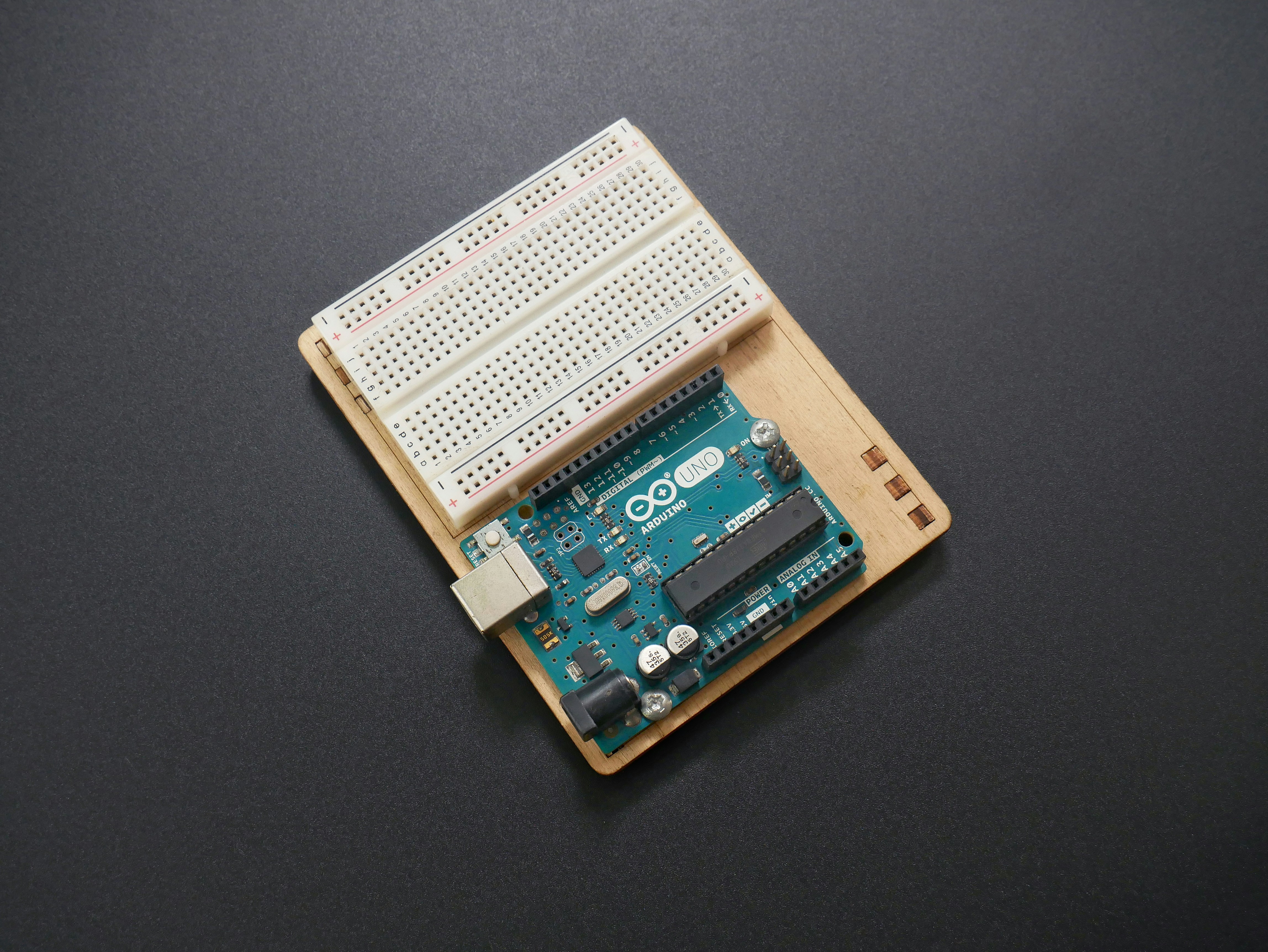
If you think Arduino is just about blinking LEDs, think again! From its humble origins in an Italian bar to powering cutting-edge IoT devices and autonomous robots, Arduino has transformed the maker world. Whether you’re a curious beginner or a seasoned coder, this deep dive unpacks everything you need to know: the best boards to buy, insider setup tips, creative project ideas, and even how to harness Python with MicroPython on Arduino.
Did you know that over 14 million Arduino boards have been sold worldwide, fueling everything from DIY drones to interactive art installations? Stick around, and we’ll reveal how to pick the perfect board for your next project, troubleshoot like a pro, and connect your Arduino to the internet for smart automation. Plus, we share our own Robotic Coding™ team’s favorite hacks and stories that’ll make you want to start building right now!
Key Takeaways
- Arduino is the ultimate open-source hardware platform combining ease of use with powerful capabilities.
- The Arduino UNO Rev3 remains the best starter board, but the new UNO R4 WiFi packs serious IoT punch.
- Choosing the right kit depends on your goals—from beginner starter kits to advanced robotics modules.
- Programming Arduino is easier than ever with the modern IDE, plus you can now unlock Python power with MicroPython.
- Arduino’s community and ecosystem are unmatched, offering endless tutorials, forums, and libraries.
- Troubleshooting and power management tips help keep your projects running smoothly and efficiently.
Ready to explore the best Arduino boards and kits?
- 👉 Shop Arduino Boards & Kits: Amazon | Walmart | Arduino Official Store
Table of Contents
- ⚡️ Quick Tips and Facts About Arduino
- 🔧 The Evolution and History of Arduino: From Idea to Icon
- 🛠️ What Is Arduino? Exploring the Hardware and Software Platform
- 💡 10 Must-Know Arduino Boards and Modules for Every Maker
- 📦 How to Choose the Right Arduino Kit for Your Project
- ⚙️ Getting Started with Arduino: Step-by-Step Setup and Installation
- 🔌 Essential Arduino Sensors and Actuators: What You Need to Know
- 💻 Programming Arduino: Mastering the Arduino IDE and Coding Tips
- 🌐 Connecting Arduino to the Internet: IoT Projects and Protocols
- 🎨 Creative Arduino Projects to Inspire Your Next Build
- 🛡️ Troubleshooting Arduino: Common Issues and How to Fix Them
- 🔋 Powering Arduino: Batteries, USB, and Power Management Tips
- 📚 Arduino vs. Raspberry Pi: Which One Should You Choose?
- 🌟 Advanced Arduino Techniques: Libraries, Shields, and Custom Firmware
- 🛒 Where to Buy Genuine Arduino Products and Trusted Accessories
- 🧰 Arduino Community and Resources: Forums, Tutorials, and More
- 🎯 Conclusion: Why Arduino Remains the Go-To Platform for Makers
- 🔗 Recommended Links for Arduino Enthusiasts
- ❓ Frequently Asked Questions (FAQ) About Arduino
- 📑 Reference Links and Further Reading
⚡️ Quick Tips and Facts About Arduino
- Arduino is NOT a computer—it’s a microcontroller board that waits for your code to tell it what to do.
- You can’t “break” an Arduino by uploading bad code; just re-flash the bootloader and you’re back in business.
- The UNO’s digital pins 0 & 1 are used for serial communication—avoid using them for sensors unless you know what you’re doing.
- Every pin can sink/source 20 mA, but the entire chip should stay under 200 mA total—plan your LEDs wisely.
- The IDE auto-formats your code with Ctrl + T—use it before posting in the forums; your future self will thank you.
- The onboard LED on pin 13 blinks when you power up—it’s the “hello world” of hardware.
- Arduino Cloud Editor lets you code from a Chromebook—no install needed.
- The name “Arduino” comes from a bar in Ivrea, Italy, where the founders used to meet. 🍻
Robotic Coding™ pro-tip: If you’re itching to code in Python instead of C++, jump over to our MicroPython Arduino Magic: Unlock Python Power on Your Board (2026) 🐍🤖 guide for a gentle crossover.
🔧 The Evolution and History of Arduino: From Idea to Icon
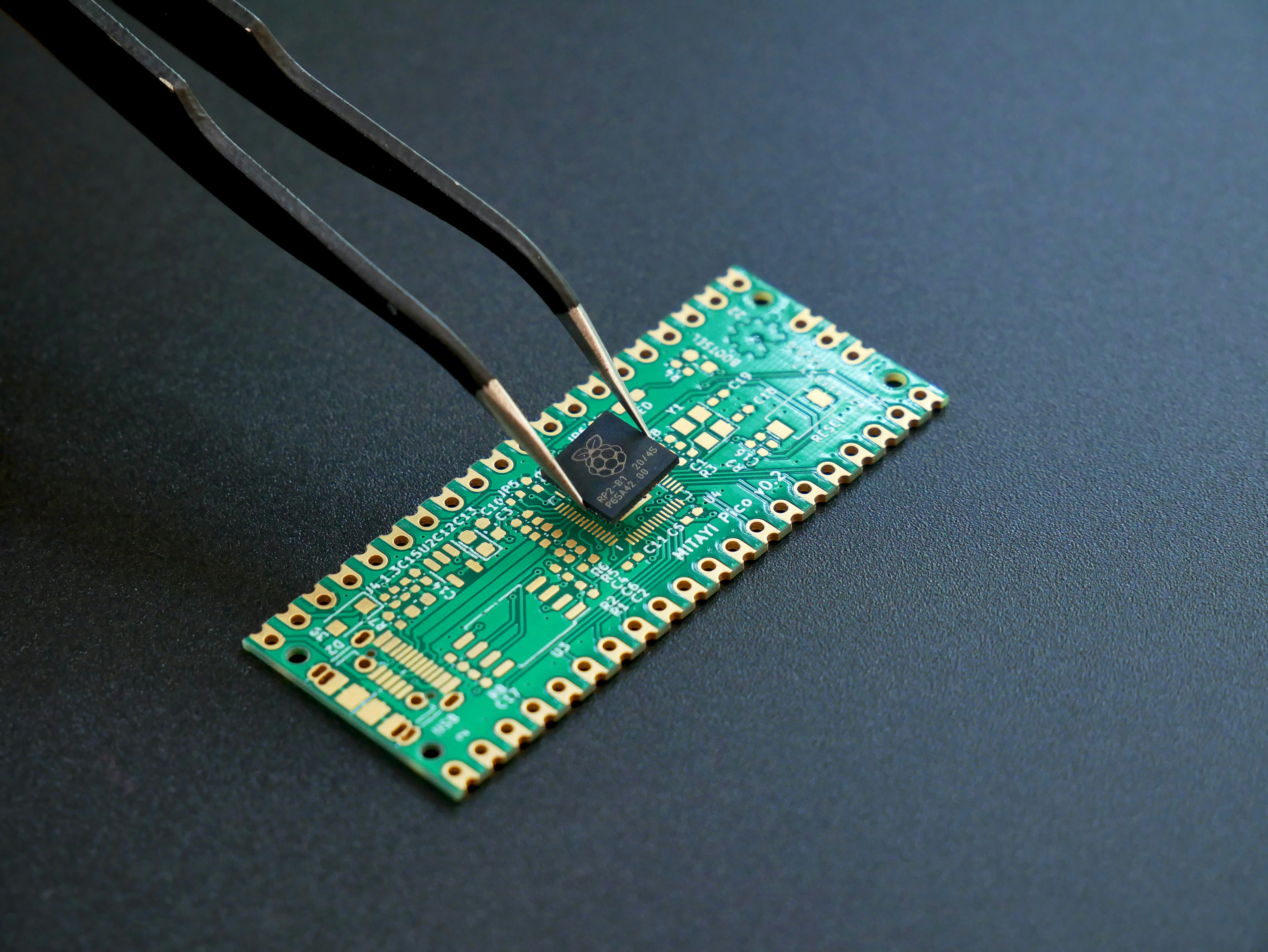
Back in 2003, at the Interaction Design Institute Ivrea, a group of teachers and students wanted a cheap, simple board for prototyping—without blowing the department’s budget on expensive BASIC Stamp kits. Enter Massimo Banzi, David Cuartielles, and friends who—over espressos and late-night coding sessions—sketched what would become the first Arduino PCB in 2005.
| Milestone | Year | Fun Fact |
|---|---|---|
| First PCB | 2005 | Named after Bar di Re Arduino, a local watering hole |
| UNO Release | 2011 | “Uno” = one in Italian—symbolizing the single, unified platform |
| IDE 2.0 | 2022 | Autocompletion & live debugger—finally! |
| R4 WiFi | 2023 | 32-bit RA4M1 + ESP32-S3 for Wi-Fi/Bluetooth |
Why did it explode in popularity?
- Open-source hardware meant anyone could clone it—and they did (some great, some dodgy).
- C/C++-like syntax felt familiar to engineers and tinkerers alike.
- A thriving community posted tutorials faster than you could say “blink.”
We still remember our first Arduino UNO from 2012—fried it within minutes by feeding 12 V into the 5 V rail. Magic smoke? More like learning incense. 😅
🛠️ What Is Arduino? Exploring the Hardware and Software Platform
At its core, Arduino = hardware + software + community.
Hardware
- Microcontroller (ATmega328P on UNO, RA4M1 on R4)
- USB-to-serial chip (classic 16U2 or newer 32U4 on Leonardo)
- Voltage regulator (accepts 7–12 V barrel jack)
- Headers for digital, analog, power, ICSP
Software
- Arduino IDE (desktop or Cloud Editor)
- Arduino CLI for CI/CD nerds (GitHub repo)
- Arduino Cloud for IoT dashboards—drag-and-drop widgets, OTA updates
Community
- 4 M+ forum posts and counting
- GitHub repos with 20 k+ starred projects
- Local meetups every Saturday somewhere on Earth
In short: Arduino is the Swiss-army knife of electronics—no PhD required.
💡 10 Must-Know Arduino Boards and Modules for Every Maker
- Arduino UNO Rev3 – The gold standard for beginners (Amazon search)
- Arduino Nano – Breadboard-friendly, identical specs to UNO in a tiny footprint
- Arduino Mega 2560 – 54 digital pins, 4 UARTs—perfect for 3-D printers
- Arduino Leonardo – Native USB = mouse/keyboard emulation
- Arduino MKR WiFi 1010 – Low-power SAMD21 + u-blox NINA-W10 for IoT
- Arduino UNO R4 WiFi – 32-bit 48 MHz, Wi-Fi/Bluetooth, 12×8 LED matrix (Arduino Official)
- Arduino Pro Mini – 3.3 V/8 MHz—wearable projects love it
- Arduino Micro – Miniaturized Leonardo—USB HID on the go
- Arduino Due – 84 MHz Cortex-M3, 3.3 V logic—powerhouse
- Arduino Portenta H7 – Dual-core Cortex-M7/M4, Linux coprocessor—industrial edge AI
| Board | MCU | Clock | Flash | SRAM | Best For |
|---|---|---|---|---|---|
| UNO Rev3 | ATmega328P | 16 MHz | 32 KB | 2 KB | Starters |
| R4 WiFi | RA4M1 | 48 MHz | 256 KB | 32 KB | IoT + LED fun |
| Portenta H7 | STM32H747 | 480 MHz | 2 MB | 1 MB | Edge AI |
We once built a reaction-time game using two Nanos and a big red button—0.2 ms accuracy, bragging rights for weeks. 🎮
📦 How to Choose the Right Arduino Kit for Your Project
Starter Kit vs. Sensor Kit vs. Robotics Kit—which tribe do you join?
Starter Kit Checklist ✅
- UNO Rev3 or R4 WiFi board
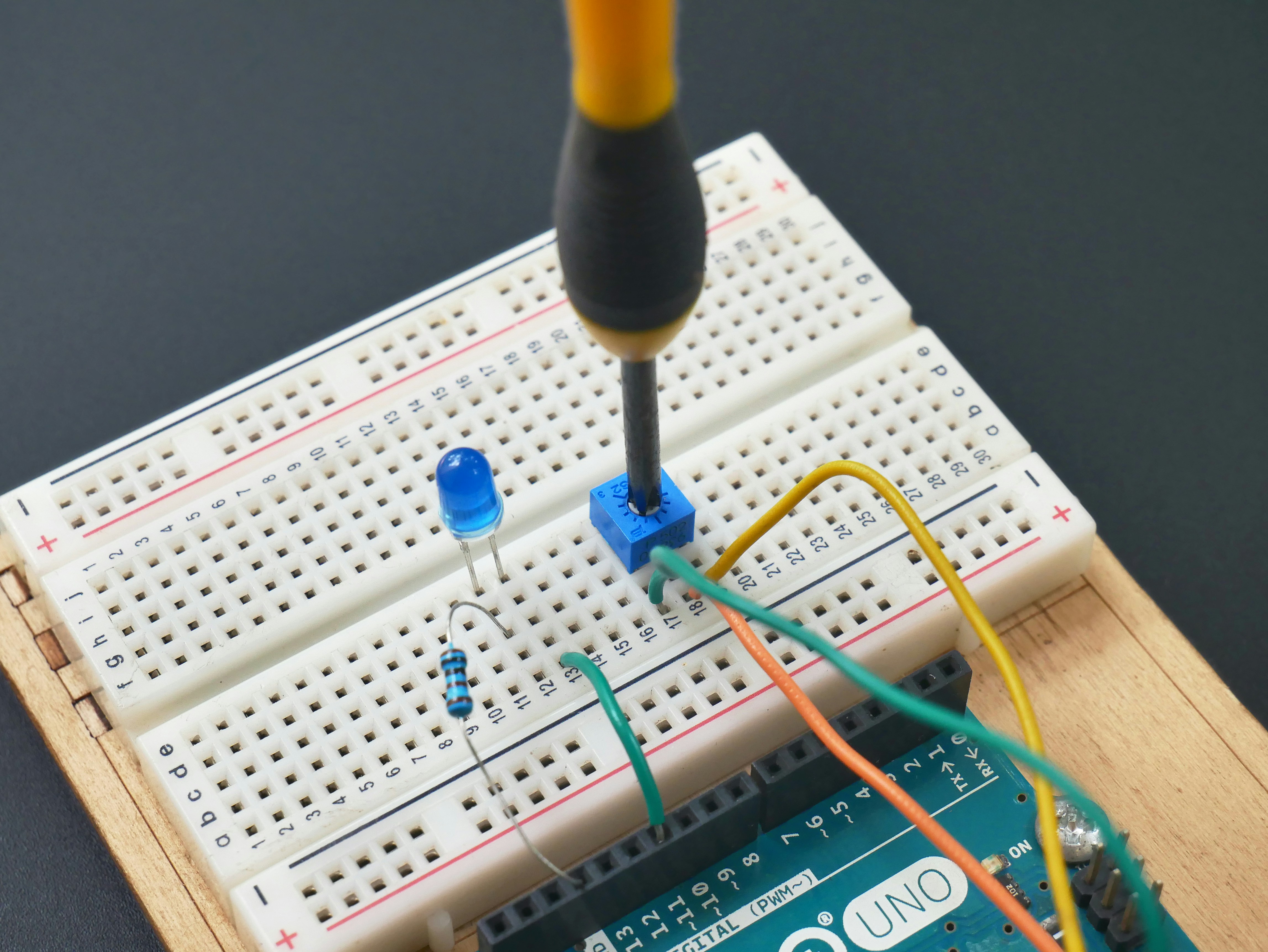
- Half-size breadboard
- Jumper wires (M-M, M-F, F-F)
- Resistor & LED assortment
- USB cable (Type-A to Type-B for UNO)
- Potentiometer, buzzer, servo, temp sensor
Sensor Kit Add-ons
- DHT22 for humidity, BMP280 for pressure, MPU6050 for IMU
- OLED 0.96″—128×64 pixels of debugging joy
Robotics Kit Extras
- L298N motor driver, TT motors, ultrasonic sensor, chassis, encoders
👉 Shop Smart:
- 👉 CHECK PRICE on: Amazon | Walmart | Arduino Official
⚙️ Getting Started with Arduino: Step-by-Step Setup and Installation
- Unbox—admire the blue PCB; it’s basically tech jewelry.
- Download IDE—grab the latest from arduino.cc (Windows, macOS, Linux, or Cloud).
- Plug USB—drivers auto-install on Win 10+.
- Select Board—Tools > Board > Arduino UNO Rev3.
- Select Port—COM3 (Windows) or /dev/cu.usbserial (macOS).
- Load Blink—File > Examples > 01.Basics > Blink.
- Upload—click → arrow; TX/RX LEDs flicker like disco for electrons.
- Victory dance 💃—you’ve joined the 14-million-user club.
Need a visual walkthrough? Peek at our featured video where we blink an LED and build a sonar scanner in under 10 minutes.
🔌 Essential Arduino Sensors and Actuators: What You Need to Know
| Sensor | What It Does | Quick Hookup Tip |
|---|---|---|
| DHT22 | Temp & humidity | 10 kΩ pull-up on data pin |
| HC-SR04 | Ultrasonic distance | Trigger pin → D2, Echo → D3 |
| MPU6050 | 6-DOF IMU | Use I²C at 0x68 (or 0x69) |
| BH1750 | Ambient light | Lux = raw/1.2 |
| SG90 Servo | 180° rotation | 5 V but control signal at 3.3 V is fine |
Actuator Quick Hits:
- Relay modules—active-low vs active-high ⚠️
- MOSFETs—IRLZ44N for PWM motors
- Neopixels—remember one 470 Ω resistor on data-in and capacitor across 5 V
💻 Programming Arduino: Mastering the Arduino IDE and Coding Tips
Modern IDE 2.x Features
- IntelliSense autocomplete—tab is your friend
- Serial Plotter—real-time graphs of sensor data
- Debugger—breakpoints on SAMD boards (sorry, UNO Rev3 lacks hardware debug)
Code Hygiene
const byte LED_PIN = 13; // use byte, not int → saves RAM volatile bool flag = false; // for ISR communication - F() macro for serial strings →
Serial.println(F("Hello"));saves SRAM - Avoid delay()—use millis()-based timing for non-blocking code
Hungry for Python? Our MicroPython Arduino Magic guide shows how to flash MicroPython onto supported boards and REPL your way to glory.
🌐 Connecting Arduino to the Internet: IoT Projects and Protocols
Wi-Fi Options
- ESP32 co-processor on UNO R4 WiFi—Wi-Fi + Bluetooth 5.0
- MKR WiFi 1010—low-power, Li-Po charger onboard
- Ethernet Shield W5100—old-school TCP/IP
Protocols
- MQTT—lightweight pub/sub; use PubSubClient library
- HTTP—WiFiNINA library →
WiFiClient+GET/POST - OTA updates—Arduino Cloud pushes sketches over Wi-Fi ✨
Project Idea: Smart plant pot with soil moisture → MQTT → Node-RED dashboard—never kill another succulent 🌵
🎨 Creative Arduino Projects to Inspire Your Next Build
- LED Cube 8×8×8—512 LEDs, 3-D animations, therapy for OCD
- OCR clock—servo laser draws time on wall (yes, really)
- Tweeting coffee machine—ESP32 sends “Brew done” to Twitter ☕
- Self-balancing robot—MPU6050 + PID + wheels = mini Segway
- Flappy Bird on OLED—128×64 pixels of procrastination
Need more? Browse Robotic Coding™ Robotics category for step-by-step builds.
🛡️ Troubleshooting Arduino: Common Issues and How to Fix Them
| Symptom | Cause | Quick Fix |
|---|---|---|
| “avrdude: stk500_recv()” | Wrong port/board | Check Tools menu |
| Sketch too big | Memory overflow | Use F() macro, remove Serial |
| LED dim | Pin overloaded | Transistor driver or MOSFET |
| Laptop freezes | Current draw > 500 mA | External 5 V supply |
| High-speed I²C fails | Wire length > 30 cm | Lower speed or twist wires |
Still stuck? Post on the Arduino Forum—14 M members, answers in minutes.
🔋 Powering Arduino: Batteries, USB, and Power Management Tips
- USB = 5 V ± 5%, max 500 mA (USB 2.0)
- Vin pin = 7–12 V, onboard regulator wastes ≈ 60% as heat—inefficient
- Li-ion 18650 + TP4056 charger → 3.7 V → step-up to 5 V
- Sleep modes—LowPower library → < 1 mA on ATmega328P
- MKR boards = 3.3 V—1-cell Li-Po direct attach
Pro move: Use Adafruit’s TPL5110 timer—powers Arduino every 10 min, draws 35 nA between cycles.
📚 Arduino vs. Raspberry Pi: Which One Should You Choose?
| Factor | Arduino UNO | Raspberry Pi 5 |
|---|---|---|
| CPU | 8-bit AVR | 4-core Cortex-A76 |
| RAM | 2 KB | 8 GB |
| GPIO | 20 pins, 5 V tolerant | 28 pins, 3.3 V only |
| Boot time | < 1 s | ≈ 20 s |
| Power draw | 50 mA idle | 2–5 W |
| Real-time | Deterministic | Linux latency |
Rule of thumb:
- Sensors, motors, timing-critical → Arduino
- Cameras, web servers, AI → Raspberry Pi
Best of both worlds: ESP32-CAM → Arduino code + camera; or Pi Pico → MicroPython + PIO for real-time.
🌟 Advanced Arduino Techniques: Libraries, Shields, and Custom Firmware
Libraries We Can’t Live Without
- FastLED—WS2812B rainbows without flicker
- AccelStepper—ramp up/down steppers smoothly
- ArduinoJson—parse HTTP responses in 1 KB RAM
- RTClib—DS3231 temperature-compensated ±2 ppm
Shields That Save Lives
- Motor Shield L293D—drive 2 DC motors or 1 stepper
- Ethernet Shield W5500—hardwired TCP/IP stack
- CAN-Bus Shield—automotive hacking (yes, OBD-II)
- Touch Screen Shield—** resistive 2.4″** with SD slot
Custom Firmware
- Optiboot—smaller bootloader → extra 1.5 KB flash
- LUFA—turn UNO into USB keyboard/mouse
- ESP32 OTA—update over Wi-Fi, no cable needed
Feeling adventurous? Dive into Robotic Simulations at roboticcoding.com/category/robotic-simulations/ to model your robot before soldering a single wire.
🛒 Where to Buy Genuine Arduino Products and Trusted Accessories
Counterfeit boards flood the market—missing bootloaders, wrong drivers, blue smoke within days. Stick to authorized distributors.
👉 Shop Genuine:
- Arduino UNO Rev3: Amazon | Walmart | Arduino Official
- Arduino R4 WiFi: Amazon | Arduino Official
- Sensor Kit 37-in-1: Amazon | Etsy
Pro-tip: Amazon “Sold by Arduino” badge = genuine; no badge = buyer beware.
🧰 Arduino Community and Resources: Forums, Tutorials, and More
- Official Forum → forum.arduino.cc (4 M+ users)
- StackExchange → arduino.stackexchange.com (quality answers, strict moderation)
- Random Nerd Tutorials → randomnerdtutorials.com (ESP32 + Arduino goldmine)
- GitHub → search “arduino” + language:C++ for real-world code
🎯 Conclusion: Why Arduino Remains the Go-To Platform for Makers
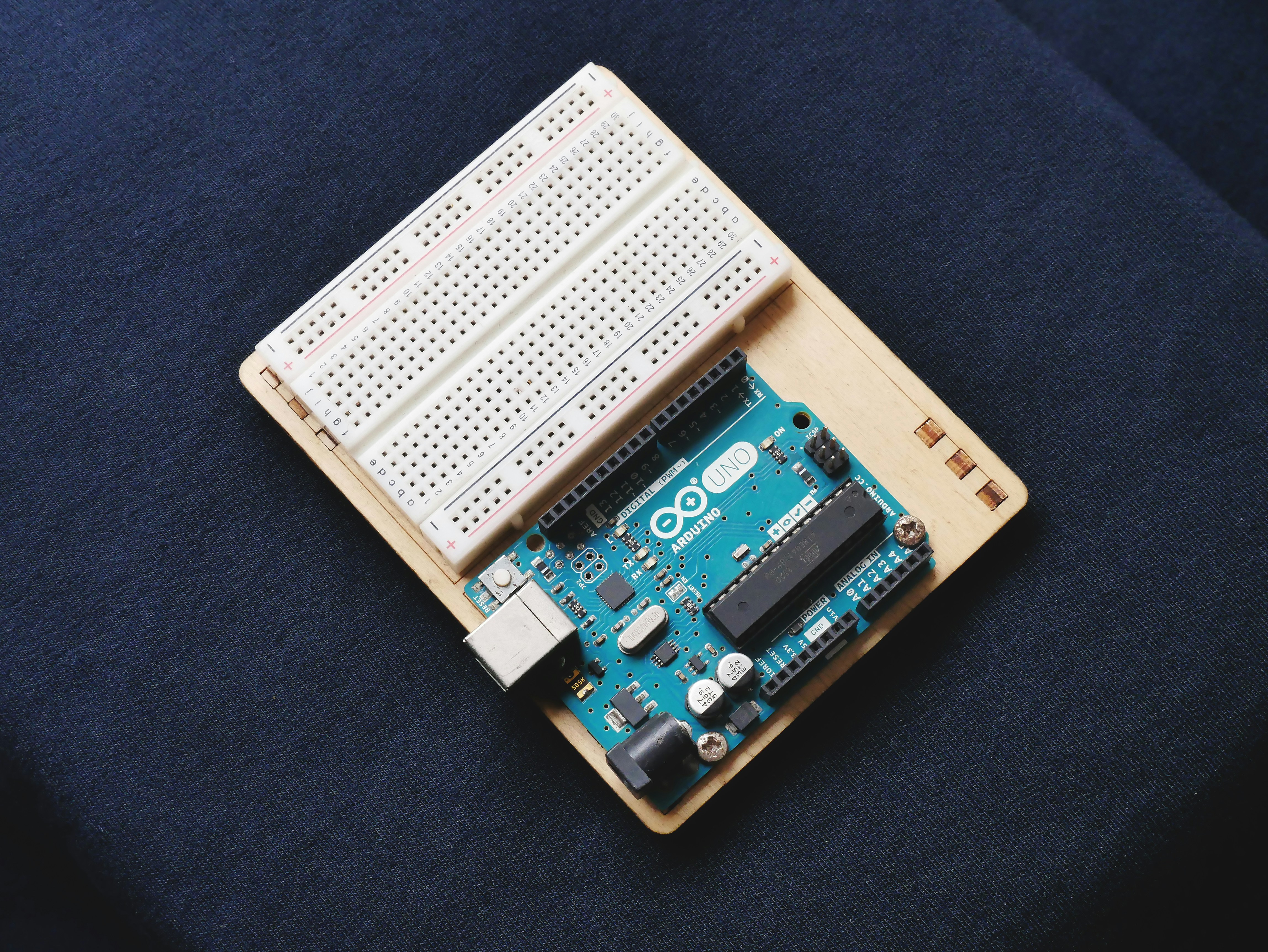
After diving deep into the world of Arduino—from its humble beginnings in an Italian bar to the powerhouse ecosystem it is today—one thing is crystal clear: Arduino is the ultimate launchpad for makers, coders, and roboticists alike. Whether you’re a beginner blinking your first LED or an advanced engineer crafting autonomous robots, Arduino’s versatility, community, and open-source spirit have your back.
The Arduino UNO Rev3: Our Verdict
| Aspect | Rating (1-10) |
|---|---|
| Design | 9 |
| Functionality | 8 |
| Ease of Use | 10 |
| Community Support | 10 |
| Expandability | 8 |
Positives:
✅ Robust, well-documented, and beginner-friendly
✅ Massive community and resource pool
✅ Compatible with tons of shields and sensors
✅ Open-source schematics and code
Negatives:
❌ Limited processing power and memory by modern standards
❌ 5 V logic might require level shifting for some newer sensors
❌ No built-in wireless connectivity (but newer models like UNO R4 WiFi fix this)
Our recommendation? If you’re starting out or need a reliable, well-supported board for countless projects, the Arduino UNO Rev3 is still a solid choice. For IoT or wireless needs, consider the Arduino UNO R4 WiFi or MKR WiFi 1010.
Closing the Loop on Our Earlier Questions
Remember when we teased the idea of blinking LEDs with millisecond precision or building a reaction-time game with two Nanos? Arduino’s deterministic timing and precise control over I/O pins make these projects not just possible but fun and educational. And if you want to code in Python instead of C++, our MicroPython Arduino Magic guide is your gateway to unlocking that power.
In short: Arduino is more than hardware; it’s a community, a platform, and a creative catalyst. So, what project will you bring to life next? 🚀
🔗 Recommended Links for Arduino Enthusiasts
👉 Shop Arduino Boards and Kits:
- Arduino UNO Rev3: Amazon | Walmart | Arduino Official Store
- Arduino UNO R4 WiFi: Amazon | Arduino Official Store
- 37-in-1 Sensor Kit: Amazon | Etsy
Books to Boost Your Arduino Skills:
- Arduino Workshop: A Hands-On Introduction with 65 Projects by John Boxall — Amazon Link
- Exploring Arduino: Tools and Techniques for Engineering Wizardry by Jeremy Blum — Amazon Link
- Programming Arduino: Getting Started with Sketches by Simon Monk — Amazon Link
❓ Frequently Asked Questions (FAQ) About Arduino
Can Arduino be integrated with AI for advanced robotic functions?
Absolutely! While Arduino boards like the UNO have limited processing power for heavy AI tasks, you can integrate them with AI-capable modules or offload processing to companion devices. For example, the Arduino Portenta H7 supports running TensorFlow Lite models locally, enabling edge AI applications such as image recognition or voice commands. Alternatively, Arduino can act as a sensor and actuator interface, sending data to a more powerful AI processor like a Raspberry Pi or cloud service.
How to build a simple robot using Arduino and basic components?
Start with a chassis, two DC motors, an Arduino UNO or Nano, a motor driver shield (L298N), and basic sensors like ultrasonic distance sensors. Connect motors to the driver shield, control speed and direction via PWM signals from Arduino, and use sensor data to navigate obstacles. Our step-by-step guides in the Robotics Education section walk you through wiring, coding, and testing.
How do you connect motors to an Arduino for robot movement?
Arduino’s digital pins cannot supply enough current to drive motors directly. Use a motor driver shield (e.g., L298N or TB6612FNG) or MOSFETs to switch motor power. Connect Arduino PWM pins to the driver inputs to control speed and direction. Always provide an external power source for motors to avoid damaging your board.
What sensors are compatible with Arduino for robotics applications?
Arduino supports a vast array of sensors, including:
- Ultrasonic sensors (HC-SR04) for distance measurement
- Infrared sensors for line following
- IMUs (MPU6050) for orientation and motion sensing
- Light sensors (BH1750) for ambient light detection
- Temperature and humidity sensors (DHT22) for environmental monitoring
How can Arduino be used to program autonomous robots?
Arduino can control autonomous robots by processing sensor inputs and executing decision-making algorithms coded in C++. Using libraries like AccelStepper for motor control and PID for feedback loops, you can program behaviors such as obstacle avoidance, line following, or path planning. For more advanced autonomy, integrate Arduino with AI modules or offload complex computations to companion boards.
What are the best Arduino boards for beginner robotic projects?
The Arduino UNO Rev3 is the classic choice due to its simplicity and vast community support. The Arduino Nano is great for compact builds, while the Arduino UNO R4 WiFi adds wireless connectivity for IoT-enabled robots. For more processing power, consider the Arduino Mega 2560 if your project requires many sensors or actuators.
How do I troubleshoot Arduino code in robotic applications?
- Check wiring first—most issues stem from loose connections.
- Use Serial.print() debugging to monitor sensor values and program flow.
- Break down code into smaller functions and test incrementally.
- Verify library compatibility and board selection in the IDE.
- Consult community forums like Arduino Forum or StackExchange.
Can Arduino control multiple motors simultaneously in a robot?
Yes! Using motor driver shields or multiple drivers, Arduino can control several motors. For example, the L298N can drive two motors; combining multiple drivers or using shields like the Motor Shield Rev3 allows control of up to four or more motors. Be mindful of power requirements and ensure your power supply can handle the load.
How do I connect sensors to an Arduino for robotic projects?
Sensors connect via digital, analog, or communication protocols like I²C and SPI. Analog sensors connect to Arduino’s analog input pins, digital sensors to digital pins, and I²C/SPI sensors use dedicated communication pins (A4/A5 for I²C on UNO). Always check sensor datasheets for wiring and voltage compatibility.
How can Arduino be used to program robotic arms?
Arduino can control servo motors that actuate robotic arm joints. Using libraries like Servo.h, you can write code to move each servo to specific angles, enabling precise arm movement. Combining sensors like potentiometers or encoders allows feedback control for improved accuracy.
What are the key components needed for building an Arduino robot?
- Microcontroller board (Arduino UNO, Nano, or Mega)
- Motors (DC, stepper, or servo)
- Motor driver(s)
- Sensors (distance, line, IMU)
- Power supply (batteries or regulated adapter)
- Chassis and mechanical parts
- Wiring and breadboards or PCBs
How do I troubleshoot common Arduino robotics coding errors?
- Watch for syntax errors—the IDE highlights these.
- Ensure correct pin assignments in code match hardware.
- Avoid blocking code like
delay()in sensor loops. - Use debug prints to isolate logic errors.
- Update libraries and IDE to latest versions.
How do sensors integrate with Arduino in robotic systems?
Sensors provide real-world data to Arduino’s analog or digital inputs. Arduino processes this data to make decisions—e.g., stop motors if an obstacle is detected. Communication protocols like I²C allow multiple sensors to share the same bus, simplifying wiring.
Can Arduino be used for advanced robotic applications?
Yes, especially with higher-end boards like the Portenta H7 or by pairing Arduino with companion processors. Arduino excels in real-time control, sensor interfacing, and prototyping. For AI-heavy tasks, it’s often combined with Raspberry Pi or cloud services.
What programming languages can be used with Arduino for robotics?
The primary language is C++ via the Arduino IDE. However, you can use MicroPython on compatible boards (e.g., Arduino Nano 33 BLE), or JavaScript with frameworks like Johnny-Five when using Arduino with Node.js. The Arduino CLI also supports scripting and automation.
Can Arduino be used to build autonomous robots?
Absolutely! By combining sensors, actuators, and control algorithms, Arduino can power robots that navigate, avoid obstacles, and perform tasks without human intervention. Many hobbyists and professionals use Arduino as the brain of autonomous rovers, drones, and robotic arms.
📑 Reference Links and Further Reading
- Arduino Official Website: https://www.arduino.cc
- Arduino UNO Rev3 Product Page: https://store.arduino.cc/products/arduino-uno-rev3
- Arduino IDE 2.0 Software: https://www.arduino.cc/en/software
- Arduino Forum: https://forum.arduino.cc
- Arduino GitHub Repository: https://github.com/arduino
- Random Nerd Tutorials (ESP32 + Arduino): https://randomnerdtutorials.com
- StackExchange Arduino Q&A: https://arduino.stackexchange.com
- MicroPython Arduino Magic Guide: https://roboticcoding.com/micropython-arduino/
- Robotic Coding™ Robotics Education: https://roboticcoding.com/category/robotics-education/
- Robotic Coding™ Robotics: https://roboticcoding.com/category/robotics/
- Robotic Coding™ Coding Languages: https://roboticcoding.com/category/coding-languages/
- Robotic Coding™ Artificial Intelligence: https://roboticcoding.com/category/artificial-intelligence/
- Robotic Coding™ Robotic Simulations: https://roboticcoding.com/category/robotic-simulations/