
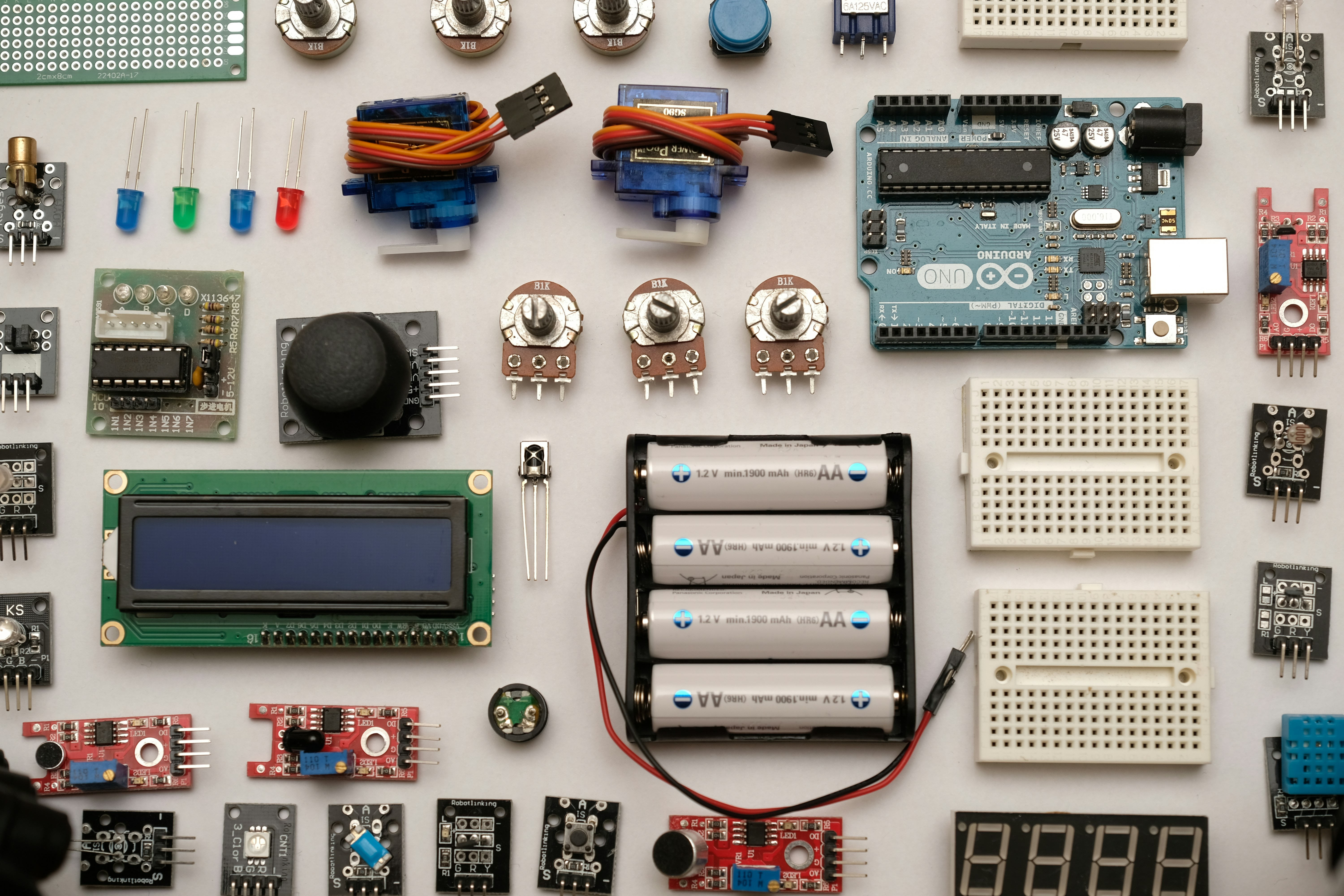
Ever tried to build a robot that could “see” only to watch it crash into a wall because a single wire was loose? We’ve all been there. At Robotic Coding™, we’ve seen brilliant engineers get stuck in the “wiring hell” phase, where the code is perfect, but the hardware just won’t talk. The truth is, connecting and programming sensors is the heartbeat of any successful robotics project, yet it’s often the most misunderstood part. While other guides might list just a handful of components, we’re diving deep into 15+ essential sensors that will transform your Arduino from a blinking light into a fully autonomous machine.
From the classic HC-SR04 ultrasonic sensor to advanced LiDAR and IMUs, this guide covers the how, why, and what if of sensor integration. We’ll walk you through the exact wiring diagrams, share the specific code libraries that save hours of debugging, and reveal the secret to filtering out that annoying electrical noise that plagues every beginner’s project. Whether you are building a self-balancing robot, a line-follower, or an outdoor navigation drone, the difference between a failure and a breakthrough often comes down to one thing: proper sensor fusion.
Ready to stop guessing and start building? Let’s unlock the full potential of your Arduino.
Key Takeaways
- Master the Basics First: Start with digital and analog sensors like the HC-SR04 and IR modules before tackling complex I2C/SPI devices like the MPU6050 or LiDAR.
- Power Management is Critical: Always verify voltage levels (3.3V vs 5V) and ensure your power supply can handle the total current draw of all connected sensors to prevent crashes.
- Filter Your Data: Raw sensor readings are rarely perfect; implement software filters (like Moving Average or Kalman Filters) to eliminate noise and ensure smooth robot movement.
- Leverage Libraries: Don’t write drivers from scratch; use proven libraries like Adafruit Unified Sensor and NewPing to handle communication protocols efficiently.
- Scale with Confidence: If you run out of pins, upgrade to the Arduino Mega or utilize I2C multiplexers to expand your sensor array without complex rewiring.
Table of Contents
- ⚡️ Quick Tips and Facts
- 🕰️ From Lab Bench to Robot Arm: A Brief History of Arduino in Sensing
- 🤖 Understanding Arduino and Its Critical Role in Modern Robotics
- 🛠️ Essential Tools and Resources for Your Sensor Journey
- 📡 Top 15 Sensors Every Arduino Robotics Enthusiast Must Master
- 🔌 How to Connect Sensors to Arduino: A Step-by-Step Wiring Guide
- Step 1: Choose Your Sensor and Verify Pinout
- Step 2: Connect the Sensor to the Breadboard
- Step 3: Connect the Breadboard to the Arduino Board
- Step 4: Power Management and Voltage Regulation
- Step 5: Troubleshooting Common Wiring Errors
- 💻 Programming Sensors with Arduino: Code Examples, Libraries, and Logic
- Essential Arduino Libraries for Sensor Interfacing
- Reading Analog vs. Digital Sensor Data
- Implementing I2C and SPI Communication Protocols
- Writing Clean, Modular Code for Multi-Sensor Systems
- 🛡️ Common Challenges When Working with Arduino Sensors
- Dealing with Noisy Sensor Data and Signal Interference
- Calibrating Sensors for Accurate Real-World Data
- Managing Power Consumption in Battery-Operated Robots
- Handling Multiple Sensors on Limited I/O Pins
- 🏆 Best Practices for Sensor Integration in Robotics
- 🌍 Real-World Applications of Arduino Sensors in Robotics
- 🚀 Innovative Projects to Inspire Your Arduino Robotics Journey
- 🔮 Future Trends in Arduino and Sensor Technology for Robotics
- 🧠 Key Takeaways
- ❓ Frequently Asked Questions (FAQ)
- 🔗 Recommended Links
- 📚 Reference Links
- 💬 Leave a Reply
⚡️ Quick Tips and Facts
Before we dive into the nitty-gritty of wiring and coding, let’s drop some hard truths that will save you hours of debugging. At Robotic Coding™, we’ve seen too many brilliant ideas fizzle out because of a single loose wire or a misunderstood datasheet.
- The 10-Bit Reality Check: Your Arduino Uno doesn’t “see” voltage; it sees numbers. With a 10-bit ADC (Analog-to-Digital Converter), it maps 0V to 5V into integers between 0 and 1023. That’s roughly 4.9mV per step. If your sensor changes by less than that, the Arduino won’t notice! 📉
- Voltage Matters: Not all sensors play nice with 5V. While the classic HC-SR04 loves 5V, modern I2C sensors like the MPU6050 often prefer 3.3V. Hooking a 3.3V sensor directly to 5V can turn your robot into a very expensive paperweight. 🔥
- Noise is the Enemy: Sensors are picky. A loose ground connection or a long wire running next to a motor can introduce electromagnetic interference (EMI), turning a clean reading into a chaotic mess. Always use decoupling capacitors near the sensor power pins!
- Library Lifesavers: Never write a driver from scratch unless you’re feeling masochistic. The Adafruit Unified Sensor Library and SparkFun libraries are your best friends. They handle the heavy lifting of I2C and SPI protocols so you can focus on the logic. 📚
- The “It Works on My Bench” Syndrome: A sensor might work perfectly on a breadboard but fail when mounted on a vibrating robot chassis. Mechanical isolation and firm mounting are just as important as the code.
Did you know? Over 50% of successful robotics projects fail in the protyping phase due to poor sensor integration or power management issues. Don’t let your project be a statistic!
🕰️ From Lab Bench to Robot Arm: A Brief History of Arduino in Sensing
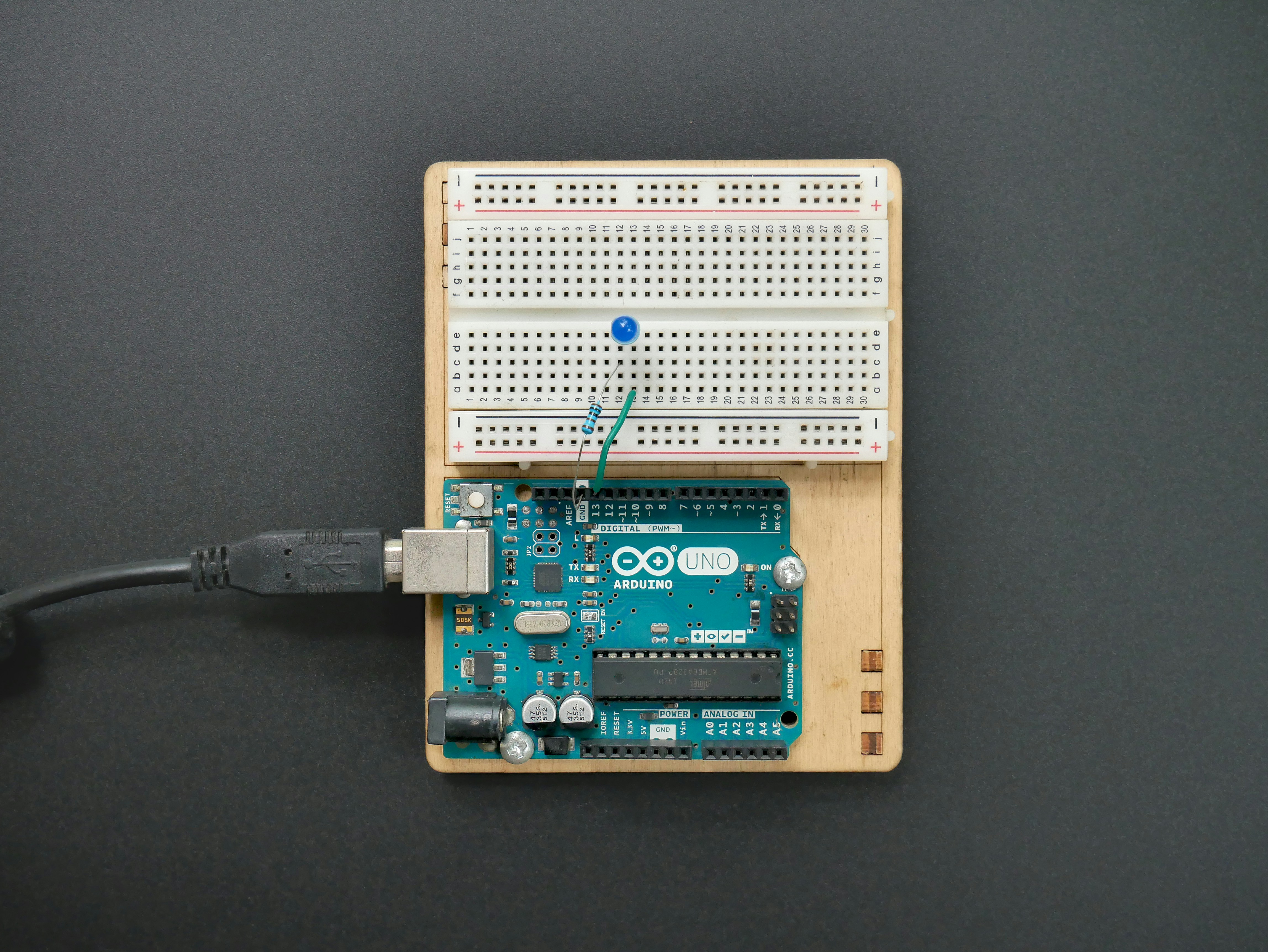
The story of Arduino isn’t just about microcontrollers; it’s about democratizing robotics. Born in 205 at the Interaction Design Institute in Ivrea, Italy, Arduino was designed to make electronics accessible to artists, designers, and hobbyists who found traditional microcontrollers (like PIC or AVR) too intimidating.
Before Arduino, if you wanted a robot to “see” an obstacle, you needed a degree in electrical engineering to wire up a comparator circuit and write assembly code. Arduino changed the game by introducing the Wiring language (a simplified C++) and a unified hardware platform.
- The Early Days: The first boards, like the Arduino NG, were clunky but revolutionary. They allowed users to connect simple sensors like photocells and potentiometers with just a few lines of code.
- The Explosion of Sensors: As the community grew, so did the ecosystem. Companies like Adafruit and SparkFun began manufacturing sensor modules specifically designed to plug into Arduino headers. This “plug-and-play” philosophy accelerated robotics development exponentially.
- From Hobby to Industry: Today, Arduino-based sensors are found in everything from agricultural drones monitoring crop health to industrial arms detecting human presence for safety. The open-source nature of the platform means that a breakthrough in a garage in Italy can be replicated in a factory in Japan within days.
For a deeper dive into how this evolution shaped modern Robotics Education, check out our history of Arduino on Robotic Coding™.
🤖 Understanding Arduino and Its Critical Role in Modern Robotics
Why do we still use Arduino in an age of powerful Raspberry Pis and NVIDIA Jetsons? The answer lies in determinism and real-time performance.
While a Raspberry Pi runs a full operating system (Linux) and can be boged down by background processes, an Arduino runs a bare-metal program. This means when your robot needs to stop imediately because an ultrasonic sensor detected a wall, the Arduino executes that command in microseconds, not milliseconds.
The Sensor Hub Architecture
In a typical robotics setup, the Arduino acts as the Low-Level Controller.
- Sensors feed raw data (distance, temperature, acceleration) to the Arduino.
- The Arduino processes this data using simple logic or sensor fusion algorithms.
- The Arduino sends high-level commands (e.g., “Turn Left 90 degrees”) to the Motor Driver.
- A higher-level computer (like a Raspberry Pi) might handle complex tasks like Computer Vision or AI decision-making, but it relies on the Arduino for the split-second reflexes.
Pro Tip: If you are building a complex robot, consider using the Arduino Mega 2560. It offers 54 digital I/O pins and 16 analog inputs, solving the biggest bottleneck of the standard Uno: Pin Limitations.
🛠️ Essential Tools and Resources for Your Sensor Journey
You can’t build a robot with just a brain; you need the right tools. Here is the Robotic Coding™ starter pack for sensor integration.
Hardware Essentials
- Arduino Board: Start with the Arduino Uno R3 for simplicity, or the Arduino Mega for complex multi-sensor projects.
- Breadboards: Get both Half-size and Full-size breadboards. You’ll need them to prototype without soldering.
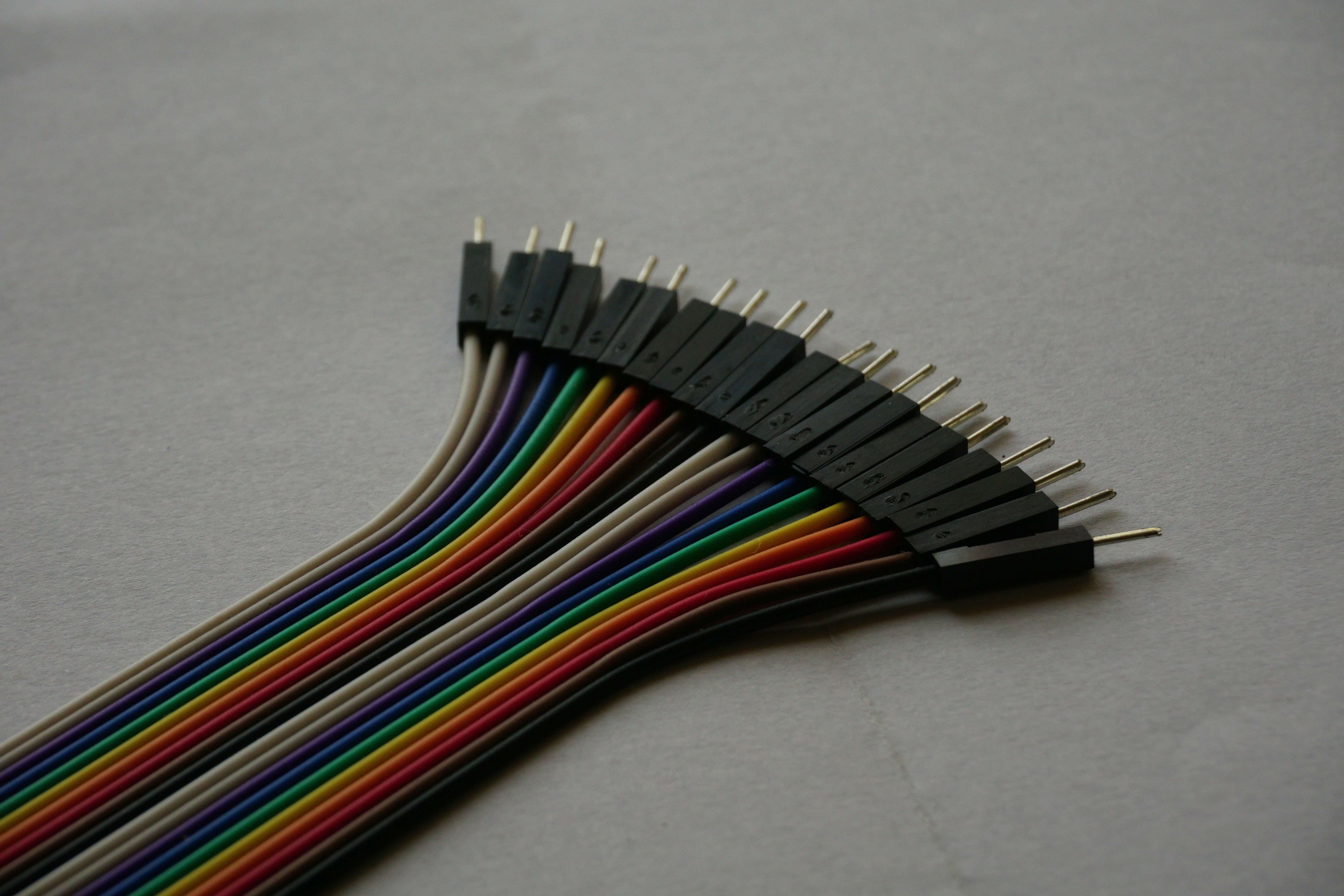
- Jumper Wires: Buy a mixed pack of Male-to-Male, Male-to-Female, and Female-to-Female. Pro tip: Avoid the super-cheap, stiff wires; they break inside the breadboard.
- Multimeter: Non-negotiable. You need to verify voltage levels and check for continuity.
- Logic Level Converter: Essential if you are mixing 5V and 3.3V sensors.
Software Resources
- Arduino IDE: The standard environment for writing and uploading code.
- Fritzing: A fantastic tool for creating circuit diagrams. It helps you visualize your wiring before you even pick up a wire.
- Serial Monitor: Built into the IDE, this is your window into the robot’s mind. Use it to debug sensor values in real-time.
📡 Top 15 Sensors Every Arduino Robotics Enthusiast Must Master
We’ve curated a list of 15 sensors that cover the spectrum from basic obstacle avoidance to advanced navigation. Unlike the “9 Sensors” list you might find elsewhere, we’ve expanded this to include LiDAR, GPS, and Force Sensitive Resistors to ensure you have a complete toolkit for any robotics challenge.
📊 Sensor Comparison Matrix
| Sensor Type | Communication | Range/Resolution | Primary Use Case | Difficulty |
|---|---|---|---|---|
| Ultrasonic (HC-SR04) | Digital | 2cm – 40cm | Obstacle Avoidance | ⭐ |
| IR Proximity | Analog/Digital | 2cm – 30cm | Line Following | ⭐ |
| MPU6050 (IMU) | I2C | 6-Axis (Accel+Gyro) | Balance & Orientation | ⭐ |
| TCS34725 (Color) | I2C | RGB + Clear | Object Sorting | ⭐ |
| MQ-135 (Gas) | Analog | ppm detection | Air Quality/Safety | ⭐ |
| VL53L0X (LiDAR) | I2C | 1cm – 20cm | Precision Mapping | ⭐ |
| NEO-6M (GPS) | UART | Global Positioning | Outdoor Navigation | ⭐ |
| HCSR04 (Ultrasonic) | Digital | 2cm – 50cm | Sonar Scanning | ⭐ |
| FSR 402 (Force) | Analog | 0.2g – 10kg | Grip Control | ⭐ |
| OV7670 (Camera) | Parallel | VGA Resolution | Computer Vision | ⭐ |
| DHT2 (Temp/Hum) | Digital | -40°C to 80°C | Environmental Monitoring | ⭐ |
| RC52 (RFID) | SPI | 0-5cm | Access Control | ⭐ |
| Hall Effect (A1302) | Analog | Magnetic Field | Motor Speed/Position | ⭐ |
| BME280 (Env) | I2C | Temp, Hum, Pressure | Weather Stations | ⭐ |
| Joystick Module | Analog | X/Y Axis | Manual Control | ⭐ |
1. 📏 Ultrasonic Sensors (HC-SR04) for Precision Distance Measurement
The HC-SR04 is the “Hello World” of robotics. It uses sound waves to measure distance.
- How it works: It sends an 8-cycle burst of ultrasonic sound at 40kHz. It then listens for the echo. The time taken is converted to distance.
- The Catch: It struggles with soft materials (like fabric) that absorb sound and has a “blind spot” of about 2cm.
- Robotic Coding™ Insight: We often use a servo motor to rotate the HC-SR04, creating a “sonar scanner” that maps the environment in 2D.
2. 🌡️ Temperature and Humidity Sensors (DHT1/DHT2)
While the DHT1 is cheap and slow, the DHT2 offers better accuracy and a wider range.
- Application: Essential for robots that operate in varying climates or need to monitor battery temperature to prevent overheating.
- Note: These sensors have a slow sampling rate (2Hz for DHT2). Don’t try to read them in a tight
whileloop!
3. 🧭 MPU6050 Accelerometer and Gyroscope for Balance and Orientation
This is the heart of any self-balancing robot.
- Function: It combines a 3-axis accelerometer (measures linear acceleration) and a 3-axis gyroscope (measures angular velocity).
- Why it’s tricky: The gyroscope drifts over time, and the accelerometer is noisy during movement. You must use a Complementary Filter or Kalman Filter to fuse the data.
- Brand Check: The GY-521 breakout board is the most common version found on the market.
4. 🔦 Infrared (IR) Sensors for Line Following and Obstacle Detection
IR sensors are the eyes of the line-following robot.
- Mechanism: They emit IR light and measure the reflection. Dark lines absorb IR (low reflection), while white surfaces reflect it (high reflection).
- Versatility: You can use them as simple digital switches (obstacle detected) or analog sensors (distance estimation).
5. 🌈 Color Sensors (TCS34725) for Object Recognition and Sorting
Want a robot that sorts red blocks from blue blocks? The TCS34725 is your go-to.
- Features: It reads Red, Green, Blue, and Clear (luminosity) values.
- Integration: Connects via I2C, making it easy to daisy-chain multiple sensors.
6. 🌪️ Gas and Air Quality Sensors (MQ Series)
The MQ-135 is a classic for detecting ammonia, sulfide, and benzene fumes.
- Warning: These sensors require a warm-up time of up to 24 hours for stable readings. They also output analog voltage that needs calibration against known gas concentrations.
7. 📶 RFID and NFC Sensors for Access Control
The RC52 module allows your robot to read RFID tags.
- Use Case: A delivery robot that only opens a package when it scans the correct tag, or a security robot that identifies authorized personnel.
8. 📐 LiDAR Sensors (VL53L0X) for Advanced Mapping and Navigation
Forget sound; LiDAR uses laser pulses. The VL53L0X is a Time-of-Flight (ToF) sensor that is incredibly accurate and has a much wider field of view than the HC-SR04.
- Advantage: It works in total darkness and isn’t affected by ambient light as much as IR.
9. 🌊 Water Level and Moisture Sensors for Agricultural Robotics
The Capacitive Soil Moisture Sensor (avoid the resistive ones that corrode!) measures the water content in soil.
- Application: Autonomous watering robots for smart gardens.
10. 🎙️ Microphone Sensors for Sound Detection and Voice Commands
Modules like the KY-038 can detect sound intensity.
- Advanced Use: With the right library, you can build a robot that claps to start or stops on a specific voice command (though true voice recognition usually requires a dedicated module like the DFRobot FireBetle).
1. 🧲 Hall Effect Sensors for Magnetic Field Detection and Motor Control
Hall Effect sensors detect magnetic fields.
- Robotics Role: They are crucial for encoders on motors. By placing a magnet on the motor shaft and a Hall sensor nearby, you can count rotations to measure speed and distance traveled with high precision.
12. 📸 Camera Modules (OV7670) for Computer Vision Integration
The OV7670 is a low-cost camera module that outputs VGA images.
- Challenge: It requires a lot of memory and processing power. It’s often better to offload this to a Raspberry Pi, but for simple color tracking, an Arduino can handle it with external SRAM.
13. 🔋 Current and Voltage Sensors (INA219)
Monitoring your robot’s power is critical. The INA219 measures bus voltage and current.
- Benefit: It helps you calculate battery life and detect short circuits before they fry your board.
14. 🌍 GPS Modules (NEO-6M) for Outdoor Navigation
The u-blox NEO-6M is the standard for Arduino GPS.
- Reality Check: It takes 30-60 seconds to get a “fix” (lock onto satellites). It’s useless indoors. For outdoor robots, this is essential for geofencing and waypoint navigation.
15. 🦶 Tactile and Force Sensitive Resistors (FSR) for Grip Control
FSRs change resistance based on pressure.
- Application: Robotic grippers that need to know if they are holding an egg (light pressure) or a rock (heavy pressure).
🔍 Where to Buy?
Ready to stock your lab? Here are the best places to find these components:
- HC-SR04 Ultrasonic Sensor:
- Amazon: Search HC-SR04 | Adafruit: Adafruit HC-SR04
- MPU6050 IMU:
- Amazon: Search MPU6050 | SparkFun: SparkFun MPU6050
- Arduino Starter Kits (Best Value):
- ELEGO 37-in-1 Kit: Amazon Link
- Kuman 37-in-1 Kit: Amazon Link
🔌 How to Connect Sensors to Arduino: A Step-by-Step Wiring Guide
Wiring is where the magic happens (and where the smoke comes out if you’re not careful). Let’s break it down.
Step 1: Choose Your Sensor and Verify Pinout
Before touching a wire, read the datasheet. Every sensor has a specific pinout.
- Common Pins: VCC (Power), GND (Ground), and Signal (Data).
- Warning: Some sensors have VCC and VIN swapped on different modules. Double-check!
Step 2: Connect the Sensor to the Breadboard
Place the sensor on the breadboard.
- Tip: If your sensor has long legs, bend them slightly to fit the breadboard rows.
- Power Rails: Connect the breadboard’s power rails to the Arduino’s 5V and GND. This keeps your wiring clean.
Step 3: Connect the Breadboard to the Arduino Board
Now, bridge the gap.
- Digital Sensors: Connect the signal pin to a Digital Pin (e.g., D2, D3).
- Analog Sensors: Connect the signal pin to an Analog Pin (A0-A5).
- I2C Sensors: Connect SDA to A4 and SCL to A5 (on Uno).
Step 4: Power Management and Voltage Regulation
Crucial Step: If you are powering multiple sensors, the Arduino’s 5V pin might not have enough current.
- Solution: Use an external power supply (like a 9V battery or LiPo) and connect its GND to the Arduino’s GND (Common Ground). Use a voltage regulator if the sensor needs 3.3V.
Step 5: Troubleshooting Common Wiring Errors
- Lose Connections: The #1 cause of failure. Push wires in firmly.
- Wrong Voltage: Check with a multimeter.
- Floating Pins: If a digital input isn’t connected, it reads random values. Use
pinMode(pin, INPUT_PULLUP)to stabilize it.
💻 Programming Sensors with Arduino: Code Examples, Libraries, and Logic
Now that it’s wired, let’s make it talk.
Essential Arduino Libraries for Sensor Interfacing
Don’t reinvent the wheel. Install these via Sketch > Include Library > Manage Libraries:
Adafruit_Sensor&Adafruit_MPU6050(for IMUs)NewPing(for Ultrasonic – much faster than the default)Wire(Built-in, for I2C)SPI(Built-in, for SPI sensors)TinyGPS(for GPS modules)
Reading Analog vs. Digital Sensor Data
Digital:
int sensorValue = digitalRead(sensorPin);
if (sensorValue == HIGH) {
 // Object detected
}
Analog:
int sensorValue = analogRead(sensorPin);
// Maps 0-1023 to 0-5V
float voltage = sensorValue * (5.0 / 1023.0);
Implementing I2C and SPI Communication Protocols
I2C uses only two wires (SDA, SCL) and allows multiple devices.
# include <Wire.h>
void setup() {
 Wire.begin(); // Join I2C bus
 Wire.beginTransmission(0x68); // Address of MPU6050
 Wire.write(0x6B); // Power management register
 Wire.write(0x0); // Wake up
 Wire.endTransmission();
}
SPI is faster but uses more pins (MOSI, MISO, SCK, CS).
Writing Clean, Modular Code for Multi-Sensor Systems
Avoid “spaghetti code.” Create functions for each sensor.
void readUltrasonic() {
 // Code to read distance
}
void readIMU() {
 // Code to read orientation
}
void loop() {
 readUltrasonic();
 readIMU();
 // Decision logic
}
🛡️ Common Challenges When Working with Arduino Sensors
Even the pros hit snags. Here’s how to handle them.
Dealing with Noisy Sensor Data and Signal Interference
The Problem: Your distance readings jump from 10cm to 50cm randomly.
The Fix:
- Hardware: Add a 0.1µF capacitor between VCC and GND.
- Software: Use a Moving Average Filter.
int readings[5];
int index = 0;
int total = 0;
// In loop:
total -= readings[index];
readings[index] = analogRead(A0);
total += readings[index];
index = (index + 1) % 5;
int average = total / 5;
Calibrating Sensors for Accurate Real-World Data
The Problem: Your temperature sensor reads 25°C when it’s actually 20°C.
The Fix:
- Offset Calibration:
realTemp = rawTemp - 5; - Scale Calibration:
realTemp = rawTemp * 0.95; - Dynamic Calibration: For IMUs, you must find the “zero-g” and “zero-rate” offsets when the robot is stationary.
Managing Power Consumption in Battery-Operated Robots
The Problem: Your robot dies in 20 minutes.
The Fix:
- Put the Arduino to sleep when idle.
- Turn off sensors that aren’t needed using code (e.g.,
digitalWrite(sensorPower, LOW)). - Use Low-Power Arduino boards like the Arduino Pro Mini.
Handling Multiple Sensors on Limited I/O Pins
The Problem: You ran out of pins on the Uno.
The Fix:
- Use I2C (only 2 pins for many sensors).
- Use Multiplexers (like the CD4051) to expand analog inputs.
- Switch to an Arduino Mega.
🏆 Best Practices for Sensor Integration in Robotics
- Sensor Fusion: Never rely on a single sensor. Combine GPS, IMU, and Wheel Encoders for robust navigation.
- Modular Design: Keep your sensor code in separate
.hand.cppfiles. It makes debugging a breeze. - Test Early, Test Often: Don’t wait until the robot is built to test the sensors. Test them on the breadboard first.
- Documentation: Label your wires! Future-you will thank present-you.
🌍 Real-World Applications of Arduino Sensors in Robotics
- Autonomous Vacuum Cleaners: Use IR and LiDAR to map rooms and avoid furniture.
- Agricultural Drones: Use multispectral cameras and soil sensors to monitor crop health.
- Search and Rescue Robots: Use gas sensors and thermal cameras to find survivors in disaster zones.
- Industrial Arms: Use force sensors to handle delicate objects without crushing them.
🚀 Innovative Projects to Inspire Your Arduino Robotics Journey
- The Self-Balancing Robot: Use the MPU6050 and PID control to keep a two-wheled robot upright.
- Smart Home Security Bot: Combine PIR motion sensors, cameras, and Wi-Fi to patrol your house.
- Gesture-Controled Arm: Use an accelerometer on your hand to control a robotic arm wirelessly.
- Solar Tracker: Use LDRs to follow the sun and maximize solar panel efficiency.
🔮 Future Trends in Arduino and Sensor Technology for Robotics
- AI at the Edge: New Arduino boards (like the Nano 3 BLE Sense) have built-in Machine Learning capabilities, allowing robots to recognize voice commands or gestures locally without the cloud.
- TinyML: Running neural networks on microcontrollers is the next big thing.
- Advanced LiDAR: Solid-state LiDAR sensors are becoming cheaper and smaller, making 3D mapping accessible to hobbyists.
- IoT Integration: Robots will increasingly communicate with smart home devices via MQTT and Home Assistant.
🧠 Key Takeaways
- Start Simple: Master the HC-SR04 and IR sensors before tackling LiDAR or IMUs.
- Power is King: Always check voltage requirements and current limits.
- Filter Your Data: Raw sensor data is rarely perfect; use software filters to clean it up.
- Community is Key: Leverage the massive Arduino community for libraries and support.
- Iterate: Your first design will fail. Your second will better. Your tenth will be amazing.
❓ Frequently Asked Questions (FAQ)
Where can I find example code for connecting and programming specific sensors with Arduino for robotics?
The best source is the Arduino Library Manager within the IDE. Once you install a library (e.g., NewPing), go to File > Examples > [Library Name] to find pre-written code. Additionally, GitHub is a goldmine; search for “Arduino [Sensor Name] example”.
How can I filter noisy sensor data in my Arduino robotics project?
Use software filtering. The simplest method is the Moving Average (averaging the last 5-10 readings). For more advanced needs, implement a Kalman Filter, which predicts the next value based on previous data and corrects it with the new reading.
Read more about “🤖 Top 10 Robotics Coding Languages You Must Know (2025)”
What are some common programming challenges when working with sensors and Arduino in robotics?
- Blocking Code: Using
delay()stops your robot from reading other sensors. Usemillis()for non-blocking timing. - Interrupts: Handling multiple sensors can be tricky with interrupts. Ensure your interrupt service routines (ISRs) are short and fast.
- Memory Limits: Large arrays or complex libraries can fill the Arduino’s limited SRAM.
Read more about “⚠️ Why Not Use MicroPython? 5 Critical Flaws (2026)”
How do I calibrate sensors for accurate data in my Arduino robot?
Calibration involves finding the offset and scale factor.
- Place the sensor in a known environment (e.g., 0°C ice water for temp).
- Read the raw value.
- Calculate the difference (offset).
- Adjust your code:
calibratedValue = (rawValue - offset) * scale.
Read more about “🤖 Top 10 Microcontrollers for Robotics in 2026: Build Smarter, Faster!”
Can I use multiple sensors with Arduino in a robotics application?
Absolutely! That’s the beauty of Arduino. Just be mindful of:
- Pin Count: Use I2C to save pins.
- Power: Ensure your power supply can handle the total current draw.
- Address Conflicts: Some I2C sensors share the same address. You may need to change their addresses or use an I2C multiplexer.
What Arduino libraries are essential for interfacing with sensors in robotics?
- Wire.h: For I2C communication.
- SPI.h: For SPI communication.
- Servo.h: For controlling motors.
- Adafruit Unified Sensor Library: A unified interface for many sensors.
- NewPing: For ultrasonic sensors (faster and more reliable).
Read more about “🤖 Can You Run MicroPython on Raspberry Pi & ESP32? (2026)”
How do I wire different sensors to my Arduino board for robotics?
Always follow the VCC-GND-Signal rule.
- VCC to 5V (or 3.3V if specified).
- GND to GND.
- Signal to the appropriate Digital or Analog pin.
- Check the datasheet! Some sensors have different pin orders.
Read more about “🤖 10 Best Arduino Robot Projects to Start Coding (2026)”
What types of sensors are commonly used in Arduino-based robotics projects?
- Ultrasonic: Obstacle avoidance.
- IR: Line following.
- IMU (Accelerometer/Gyro): Balance and orientation.
- GPS: Navigation.
- Temperature/Humidity: Environmental monitoring.
Read more about “Can You Use CircuitPython with Arduino Boards for Robotics? 🤖 (2026)”
What are the best sensors for Arduino robotics beginners?
Start with the HC-SR04 Ultrasonic Sensor and a Photoresistor (LDR). They are cheap, easy to wire, and teach you the basics of digital and analog reading.
Read more about “🤖 The Most Popular AI Robot of 2026: 5 Top Contenders Revealed”
How do I wire an ultrasonic sensor to Arduino for obstacle avoidance?
Connect VCC to 5V, GND to GND, Trig to a Digital Pin (e.g., D9), and Echo to another Digital Pin (e.g., D8). Use the NewPing library to read the distance.
Can I use multiple sensors with one Arduino for a robot?
Yes, but watch out for power supply limits and I2C address conflicts. If you run out of pins, consider using an Arduino Mega or an I2C multiplexer.
Read more about “🤖 CircuitPython vs MicroPython: The 2026 Showdown for Robots & Makers”
What code libraries are needed for Arduino sensor integration in robotics?
It depends on the sensor. Generally, you need Wire.h (I2C), SPI.h (SPI), and specific libraries like Adafruit_MPU6050 or TinyGPS.
Read more about “🚀 7 Benefits of MicroPython for Robotic Coding (2026)”
How do I calibrate infrared sensors for line following robots?
Place the robot on the line and off the line. Record the analog values for both. Set a threshold in your code (e.g., if value > 50, it’s on the line; else, it’s off).
Read more about “Mastering Arduino Code: 10 Essential Tips & Tricks for 2026 🚀”
What power supply is required for connecting multiple sensors to Arduino?
Calculate the total current (in mA) of all sensors. If it exceeds 50mA (the limit of the Arduino’s 5V regulator), use an external battery pack and connect the grounds together.
Read more about “Arduino Uncovered: 15 Must-Know Boards, Tips & Projects (2026) ⚡️”
How do I read and process data from an IMU sensor on Arduino for robot balance?
Read the accelerometer and gyroscope data. Use a Complementary Filter to combine them: angle = 0.98 * (angle + gyro * dt) + 0.02 * accel. This smooths out the noise and drift.
Conclusion
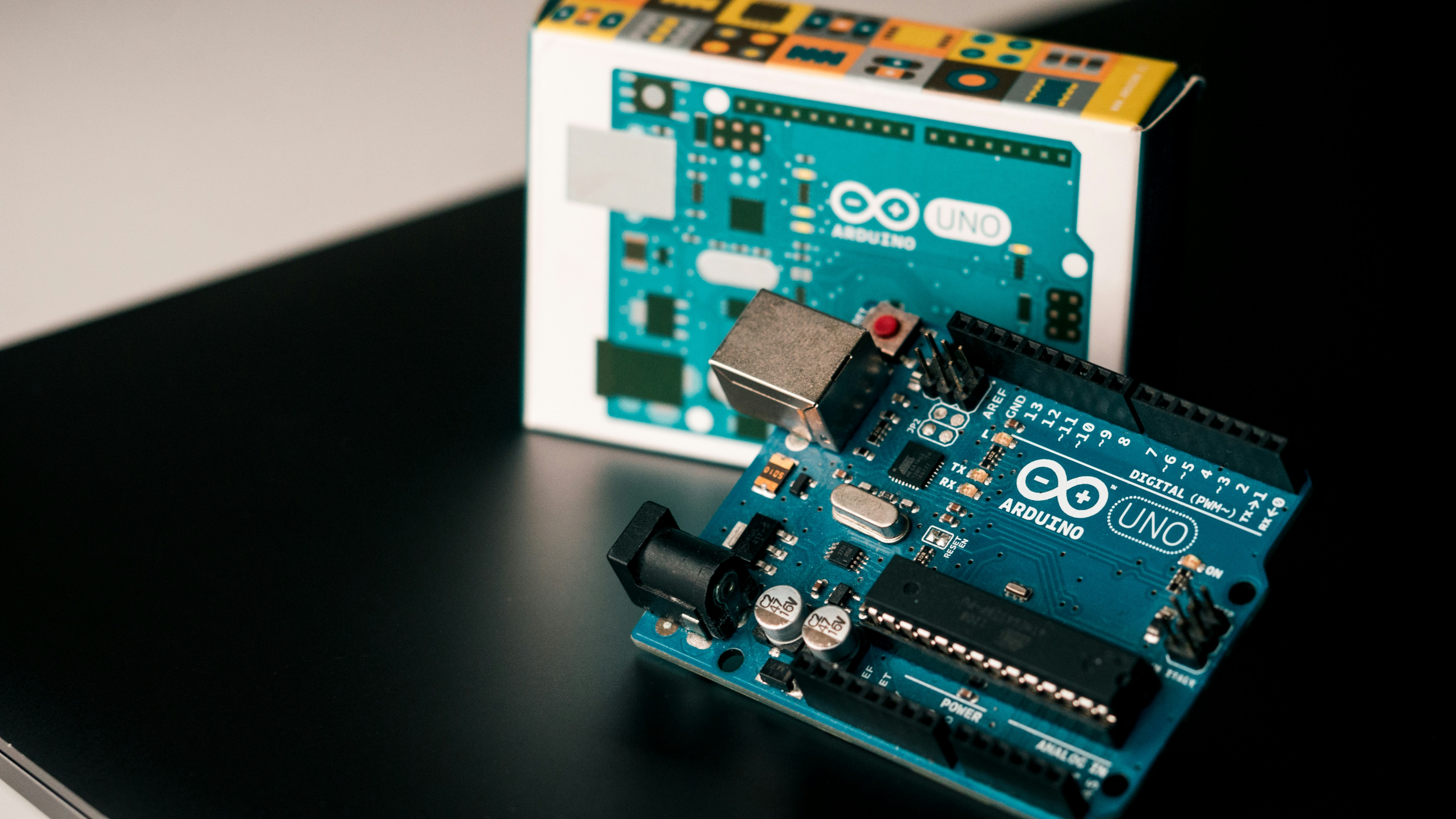
Connecting and programming sensors with Arduino is the gateway to creating robots that can truly interact with the world. From the simple beep of an ultrasonic sensor to the complex data fusion of an IMU, each component adds a layer of intelligence to your creation.
The Verdict:
- Positives: Arduino offers an unmatched balance of affordability, community support, and ease of use. The sheer variety of sensors available makes it the perfect platform for protyping and learning.
- Negatives: The limited processing power and memory can be restrictive for advanced AI tasks, and calibration can be a tedious process for beginners.
Final Recommendation: If you are starting your robotics journey, start with Arduino. It provides the perfect sandbox to learn the fundamentals of sensor integration, coding, and hardware control. Once you’ve mastered the basics, you can graduate to more powerful platforms like Raspberry Pi or NVIDIA Jetson.
Remember: The robot you build today might not be perfect, but the skills you learn will last a lifetime. So, grab your breadboard, fire up the IDE, and let’s build something amazing!
🔗 Recommended Links
Hardware & Components
- Arduino Official Store: Arduino Uno R3
- Adafruit Sensor Kits: Adafruit Ultimate Sensor Kit
- SparkFun Electronics: SparkFun Sensor Selection Guide
- Amazon Best Sellers: Arduino Sensor Kits
Books & Resources
- Arduino Robotics: Buy on Amazon
- Exploring Arduino: Buy on Amazon
- Learn Robotics Online: Online Robotics Class
📚 Reference Links
- Arduino Official Documentation: Arduino Reference
- Adafruit Learning System: Adafruit Guides
- SparkFun Tutorials: SparkFun Tutorials
- Learn Robotics Blog: 9 Sensors for Arduino You Must Learn
- Robotic Coding™: Arduino Category
💬 Leave a Reply
Have you built a robot with an Arduino sensor? What was your biggest challenge? Share your stories in the comments below! We love hearing about your projects.